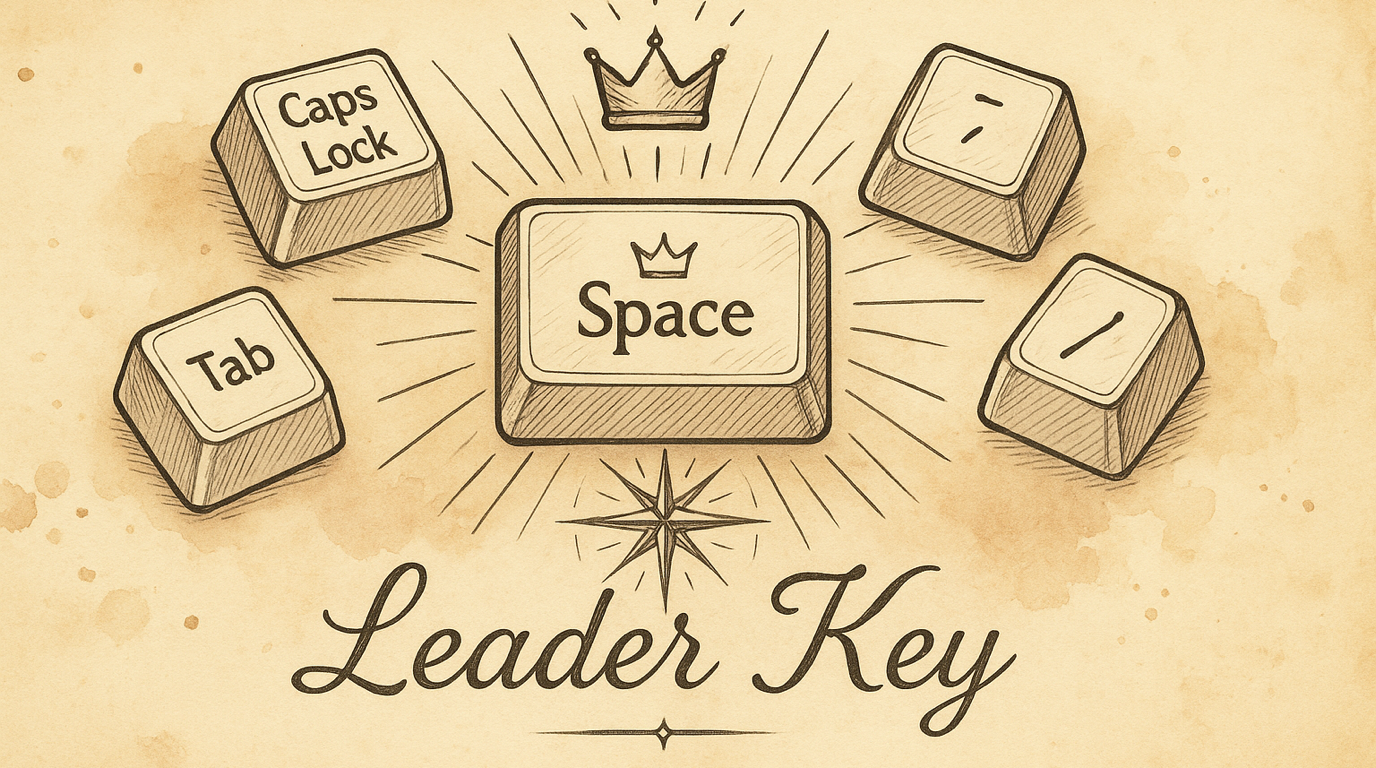
Choose Your Leader Key
Every layer in KeyPath — navigation, numpad, symbols, function keys, window snapping — activates through one key: your Leader. By default it’s Space. But if Space doesn’t feel right, you can switch to Caps Lock, Tab, or Backtick. One change here updates every layer at once.
What Is the Leader Key?
The Leader key is the single key you hold to enter the navigation layer. From there, you either use navigation directly (H/J/K/L for arrows) or press a second key to reach a deeper layer (S for symbols, F for function keys, ; for numpad).
Think of it as the front door to all your keyboard shortcuts. Every layer pack that says “Hold Space →” is really saying “Hold your Leader key →.”
Your Options
| Key | Why you’d pick it |
|---|---|
| ␣ Space (default) | Easiest thumb access. Tap for space, hold for layers. Most people start here. |
| ⇪ Caps Lock | Dedicated modifier — no conflict with typing. Great if you never use Caps Lock anyway. |
| ⇥ Tab | Left pinky access. Tap for Tab, hold for layers. Good for Vim users who want Space untouched. |
| ` Backtick | Upper-left corner. Rarely used in normal typing. Tap for backtick, hold for layers. |
Changing It
- Open KeyPath and click the gear icon to open the inspector panel
- Go to the Rules tab
- Find Leader Key in the list (look for the hand icon)
- Select your preferred key from the picker
The change takes effect immediately — all layers that use the Leader key update automatically. No need to individually reconfigure each pack.
How It Affects Other Packs
The Leader key setting is global. Changing it from Space to Caps Lock means:
- Vim Navigation: Hold Caps Lock + H/J/K/L for arrows (instead of Space)
- Window Snapping: Hold Caps Lock → W → window actions
- Numpad: Hold Caps Lock → ; → number entry
- Symbol: Hold Caps Lock → S → programming symbols
- Function: Hold Caps Lock → F → F-keys and media
- Delete Enhancement: Hold Caps Lock + Delete for forward-delete
- Mission Control: Hold Caps Lock → shortcuts for Exposé, desktops
Which Should You Pick?
Space (default) — best for most people
Pros: Your strongest finger (thumb) does the work. Natural to hold while other fingers move.
Cons: Adds a tiny delay to typing spaces (the tap/hold threshold). Most people don’t notice after a day.
Caps Lock — best if you’ve already remapped it
Pros: Zero conflict with typing. Feels natural if you’re used to Caps Lock as a modifier (Ctrl or Hyper). Dedicated key that you never accidentally press.
Cons: Left pinky does all the work. Slightly less ergonomic for extended layer use.
Tab — best for Vim purists
Pros: Keeps Space completely normal. Left hand activates, right hand navigates. Familiar if you’ve used Leader in Vim/Neovim.
Cons: Tab key now needs a tap/hold distinction. Can conflict with tab-completion in some apps.
Backtick — best for minimal disruption
Pros: Rarely used in normal typing (markdown/code aside). No conflict with common shortcuts.
Cons: Awkward reach from the home row. You’ll need to hold an unusual key.
Combining with Caps Lock Remap
If you set Leader to Caps Lock, you probably also want the Caps Lock Remap pack configured with a tap action (like Escape or Backspace). That way:
- Tap Caps Lock → Escape (or your chosen action)
- Hold Caps Lock → Leader key (activates all layers)
This is the “Caps Lock does everything” setup that many keyboard enthusiasts use.
Troubleshooting
Changing the Leader doesn’t seem to work
- Make sure the Leader Key pack is enabled (toggled on)
- Verify KeyPath’s service reloaded (check for the green indicator)
- Try disabling and re-enabling one of the dependent packs (like Vim Navigation)
Space feels laggy after enabling
The tap/hold threshold (default 180ms) determines how long you must hold before it’s a “hold” vs. a “tap.” If typing feels sluggish:
- Practice releasing Space quickly between words
- The threshold is tuned for most typists — give it a day before adjusting
I want a key that’s not in the list
Currently the four options (Space, Caps Lock, Tab, Backtick) are the supported leaders. These were chosen for ergonomics and compatibility with the layer system.
Next Steps
- Navigate Text Like a Keyboard Ninja — The foundation layer that Leader activates
- Shortcuts Without Reaching — Combine Leader layers with home row modifiers
- Keyboard Concepts — Background on layers and momentary activation
- Back to Docs