One Key, Multiple Actions
A standard keyboard gives you about 80 keys, and each one does exactly one thing. That’s limiting — you run out of convenient shortcuts fast, especially if you want to launch apps, navigate, and use modifiers without leaving the home row.
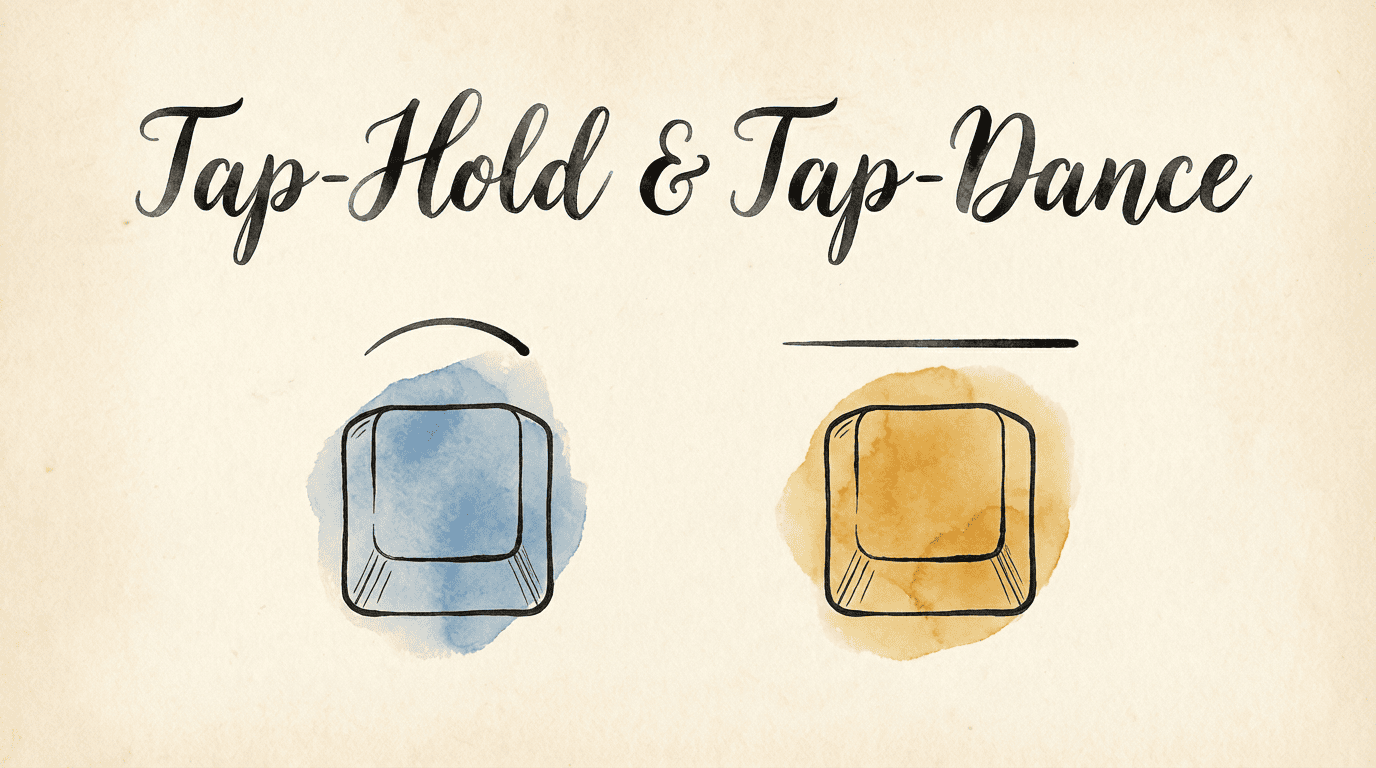
KeyPath lets a single key do different things depending on how you press it:
- Tap-Hold: Tap for one action, hold for another — like Caps Lock that sends Escape on tap but activates shortcuts on hold
- Tap-Dance: Different actions for single tap, double tap, triple tap — like a double-click but for any key
These dual-role keys are the foundation of everything else in KeyPath: home row modifiers, app launching, navigation layers, and more.
If you’re new to these ideas, start with the Keyboard Concepts page for a beginner-friendly overview.
Quick Start
Creating a Tap-Hold Key
- Open the Custom Rules tab in the inspector panel
- Click New Rule (+ button)
- Set your Start key and Finish key (tap action)
- Enable the Hold, Double Tap, etc. toggle
- Set On Hold — this is what happens when held
- Choose hold behavior
- Save
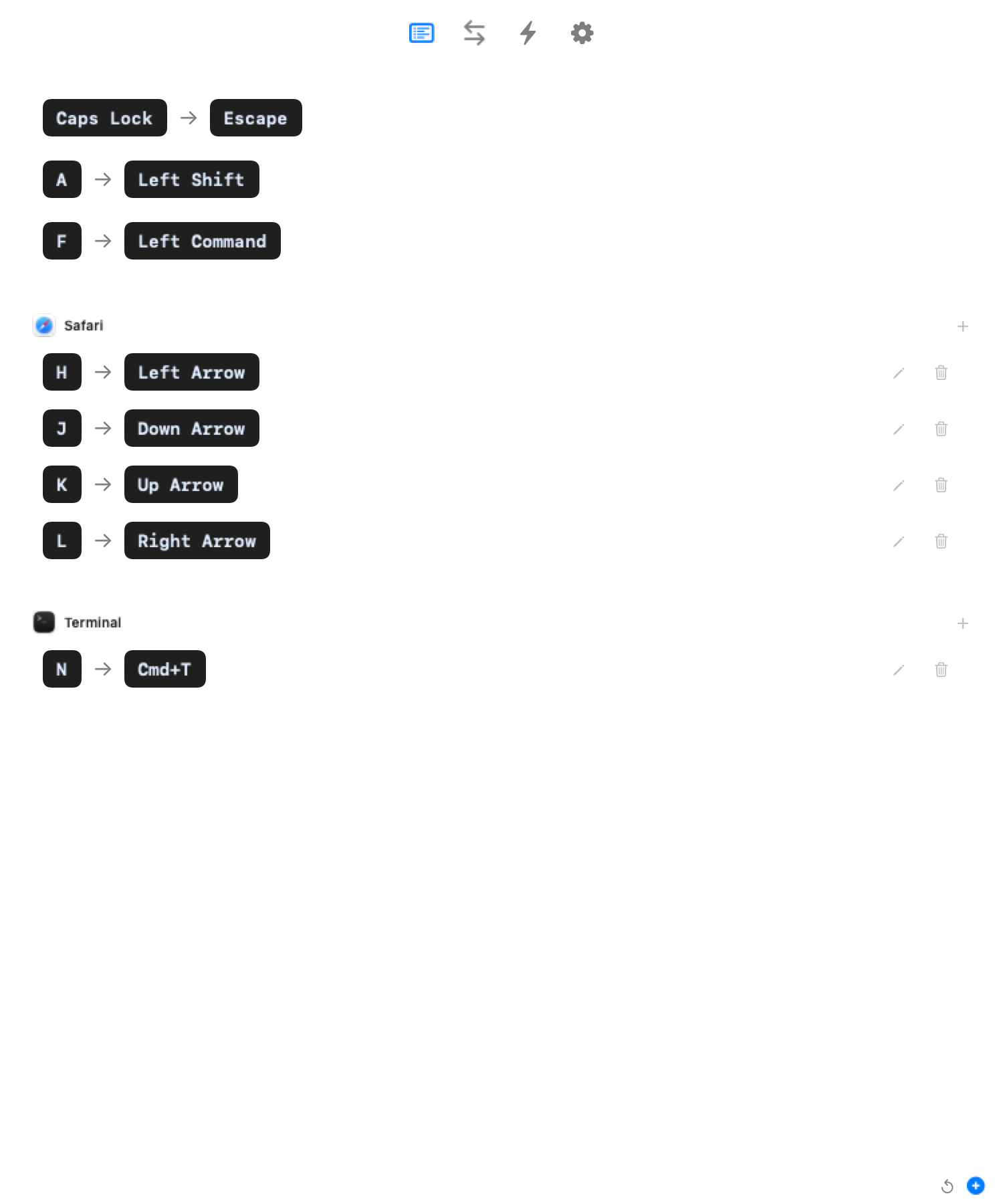 Screenshot — Custom Rules tab with new rule form:
  ┌─────────────────────────────────────────────────────┐
  │  Custom Rules                                       │
  │                                                     │
  │  ┌────────────────────────────────────────────────┐ │
  │  │  EVERYWHERE (global rules)                     │ │
  │  │                                                │ │
  │  │  caps_lock ──→ escape                          │ │
  │  │  a (hold) ──→ left_shift                       │ │
  │  │  f (hold) ──→ left_command                     │ │
  │  └────────────────────────────────────────────────┘ │
  │                                                     │
  │  ┌────────────────────────────────────────────────┐ │
  │  │  🧭 SAFARI (app-specific rules)                │ │
  │  │                                                │ │
  │  │  h ──→ left_arrow                              │ │
  │  │  j ──→ down_arrow                              │ │
  │  │  k ──→ up_arrow                                │ │
  │  │  l ──→ right_arrow                             │ │
  │  └────────────────────────────────────────────────┘ │
  │                                                     │
  │  [ ↺ Reset ]                     [ + New Rule ]     │
  └─────────────────────────────────────────────────────┘
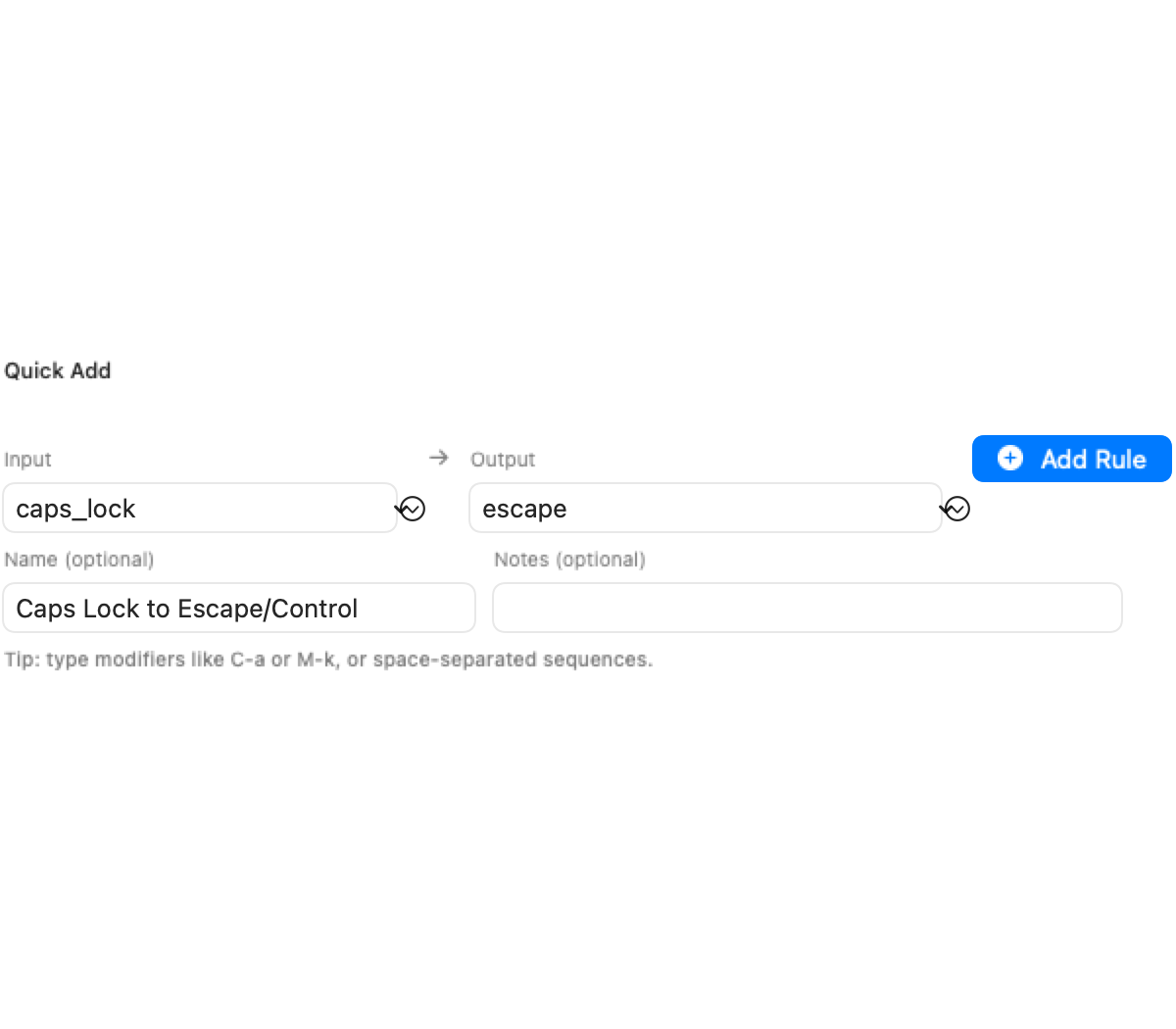 Screenshot — Rule editor with hold behavior options:
  ┌─────────────────────────────────────────────────────┐
  │  New Rule                                           │
  │                                                     │
  │  Start key:    [ caps_lock      ▾ ]                 │
  │  Finish key:   [ escape         ▾ ]  (tap action)   │
  │                                                     │
  │  ┌ Hold, Double Tap, etc. ─────────────── [ON] ──┐ │
  │  │                                                │ │
  │  │  On Hold:   [ left_control   ▾ ]               │ │
  │  │                                                │ │
  │  │  Hold Behavior:                                │ │
  │  │  ┌──────────┐ ┌──────────┐ ┌──────────┐       │ │
  │  │  │  Basic   │ │ Trigger  │ │  Quick   │       │ │
  │  │  │          │ │  early   │ │   tap    │       │ │
  │  │  └──────────┘ └──────────┘ └──────────┘       │ │
  │  │                                                │ │
  │  │  Tap timeout:   [ 200 ms ]                     │ │
  │  │  Hold timeout:  [ 200 ms ]                     │ │
  │  └────────────────────────────────────────────────┘ │
  │                                                     │
  │                              [ Cancel ]  [ Save ]   │
  └─────────────────────────────────────────────────────┘
Creating a Tap-Dance Key
- Open the Custom Rules tab in the inspector panel
- Click New Rule (+ button)
- Set your Start key (e.g.,
caps) - Set your Finish key (e.g.,
esc) — this is the single-tap action - Enable Hold, Double Tap, etc. toggle
- Set Double Tap (e.g.,
caps) - (Optional) Click Add Tap Step for triple-tap, quad-tap, etc.
- Save
Note: Hold and Tap-Dance cannot be used together on the same key. If you try to set one when the other is already configured, a dialog will ask which behavior you want to keep.
Hold Behavior Options
| Option | Description |
|---|---|
| Basic | Hold activates after timeout |
| Trigger early | Hold activates when another key is pressed |
| Quick tap | Fast taps always register as tap |
| Custom keys | Only specific keys trigger early tap |
Common Use Cases
Home Row Modifiers
Map your home row keys to modifiers when held (Mac-optimized CAGS layout):
a → a (tap) / Left Shift (hold)
s → s (tap) / Left Control (hold)
d → d (tap) / Left Option (hold)
f → f (tap) / Left Command (hold)
Settings:
- Hold behavior: Trigger early
- Tap timeout: 200ms
- Hold timeout: 200ms
This allows you to press a + j quickly and it triggers Ctrl+J instead of aj.
Caps Lock Replacement
Replace Caps Lock with Escape on tap, Control on hold:
caps → esc (tap) / lctl (hold)
Settings:
- Hold behavior: Basic
- Tap timeout: 200ms
Space Cadet Shift
Space bar that acts as Space on tap, Shift on hold:
spc → spc (tap) / lsft (hold)
Settings:
- Hold behavior: Quick tap
- Tap timeout: 200ms
Tap-Dance Examples
Escape / Caps Lock / Control
caps → esc (single tap) / caps (double tap) / lctl (triple tap)
Function Key Layer Toggle
f1 → f1 (single tap) / layer-toggle function (double tap)
Technical Details
Kanata Variants
KeyPath generates the appropriate Kanata variant based on your settings:
tap-hold-press: Hold triggers on other key press (activateHoldOnOtherKey = true)tap-hold-release: Quick-tap / permissive-hold (quickTap = true)tap-hold-release-keys: Early tap on specific keys (customTapKeysnon-empty)tap-hold: Basic timeout-based (default)
Timeout Configuration
- Tap timeout: Time (ms) before hold activates
- Hold timeout: Time (ms) for hold to fully activate
Default is 200ms for both, which works well for most users. Adjust based on your typing speed and preferences.
Tap-Dance: multiple taps, multiple actions
Tap-hold gives you two actions per key (tap and hold). Tap-dance goes further — different actions based on how many times you tap.
  Caps Lock with tap-dance:

  1 tap  → Escape
  2 taps → Caps Lock (when you actually need it)
  3 taps → Toggle a layer
This is great for keys you rarely use in their original form. Pack multiple functions into one key without adding complexity to everyday typing — you only get the multi-tap action when you deliberately tap quickly.
Setting up tap-dance
- Open the Custom Rules tab
- Create or edit a rule
- Enable Hold, Double Tap, etc.
- Set actions for single tap, double tap, and optionally triple tap
The timing window between taps is configurable. A shorter window means you need to tap faster; a longer window gives you more time but adds a slight delay before the single-tap action fires (KeyPath has to wait to see if you’ll tap again).
One-Shot Modifiers: tap a modifier, it applies once
Standard modifiers require holding — hold Shift, press A, release Shift to type “A”. One-shot modifiers let you tap a modifier and it applies to just the next key.
  Standard:                  One-shot:
  Hold Shift + press A       Tap Shift, then press A
  = A                        = A (then Shift deactivates)
This is useful for:
- Accessibility — easier for users who find holding keys difficult
- One-handed typing — tap a modifier with one hand, type the key with the other
- Reducing finger strain — no simultaneous key holding
One-shot modifiers are configured in the Kanata config. Add them to any key using the one-shot action:
;; In your Kanata config:
(defalias
  os-sft (one-shot 1500 lsft)  ;; Tap for one-shot Shift (1.5s timeout)
  os-ctl (one-shot 1500 lctl)  ;; Tap for one-shot Control
)
The timeout (1500ms) is how long the one-shot stays active waiting for the next key. If you don’t press a key within that window, the modifier deactivates.
Troubleshooting
Hold activates too quickly
Increase the tap timeout. Try 250ms or 300ms.
Hold doesn’t activate reliably
- Use Trigger early for home-row mods
- Decrease hold timeout
- Check for conflicts with other remappings
Tap-Dance not working
Ensure you’ve set at least a double-tap action. Single tap alone won’t enable tap-dance behavior.
Advanced Configuration
For power users, you can edit the generated Kanata config directly to fine-tune behavior. See the Kanata tap-hold documentation for all available options.
Next Steps
- Shortcuts Without Reaching — The most popular use of tap-hold
- What You Can Build — See tap-hold in action: Hyper key, navigation layers, combined setups
- Keyboard Concepts — Background on layers, modifiers, and dual-role keys
- Launching Apps — Trigger actions from your keyboard config
- Alternative Layouts — Tap-hold works with any layout
- Switching from Karabiner? — See how Karabiner’s
to_if_alonemaps to Kanata tap-hold - Back to Docs
External resources
- Kanata tap-hold documentation — Full reference for all tap-hold variants ↗
- The Home Row Mods Guide (Precondition) — Community deep dive on tap-hold for home row mods ↗
- Pascal Getreuer’s home row mods analysis — Technical analysis of tap-hold timing and anti-misfire strategies ↗
- QMK tap-hold documentation — Firmware perspective on the same concepts (useful for understanding the theory) ↗
- Kanata GitHub Discussions — Community Q&A on tap-hold tuning ↗