
Launching Apps & Workflows
Switching between apps usually means reaching for the Dock, opening Spotlight, or hunting through windows. KeyPath lets you skip all of that — press a key combination and your app, URL, or folder opens instantly. No mouse, no searching, no waiting.
What you can launch
| Target | Example | What happens |
|---|---|---|
| App | Safari, Terminal, Messages | Opens the app (or brings it to front if already running) |
| URL | github.com, google.com | Opens in your default browser |
| Folder | ~/Documents, ~/Desktop | Opens in Finder |
| Script | backup.sh, deploy.py | Runs the script (with safety protections) |
Setting up your first launcher
The fastest way to start launching apps from your keyboard:
- Open KeyPath — the keyboard overlay appears on screen
- Click the gear icon on the overlay to open the inspector panel
- Switch to the Launchers tab (bolt icon)
- Click Add Shortcut and choose what to bind:
- Pick an app from the app picker
- Paste a URL
- Browse to a folder
- Click a key on the keyboard overlay to assign it
- Done — hold Caps Lock (Hyper) + press that key to launch
 Screenshot — Overlay header bar with inspector controls:
  ┌─────────────────────────────────────────────────────────┐
  │  ·:·:·:·:·:·:·  (drag texture)     ● Base  ☰  👁       │
  │                                     ↑       ↑  ↑       │
  │                              layer pill  drawer  hide   │
  └─────────────────────────────────────────────────────────┘
 Screenshot — Inspector panel toolbar (tap the gear to toggle settings tabs):
  ┌─────────────────────────────────────────────────────────┐
  │                                                         │
  │     [ Custom Rules ]  [ Key Mapper ]  [ ⚡Launchers ]   │
  │                                        ^^^^^^^^^^^      │
  │                          ⚙ ← gear toggles settings      │
  │                                                         │
  │     [ Keymap ]  [ Layout ]  [ Keycaps ]  [ Sounds ]     │
  │       (hidden until gear is tapped)                     │
  └─────────────────────────────────────────────────────────┘
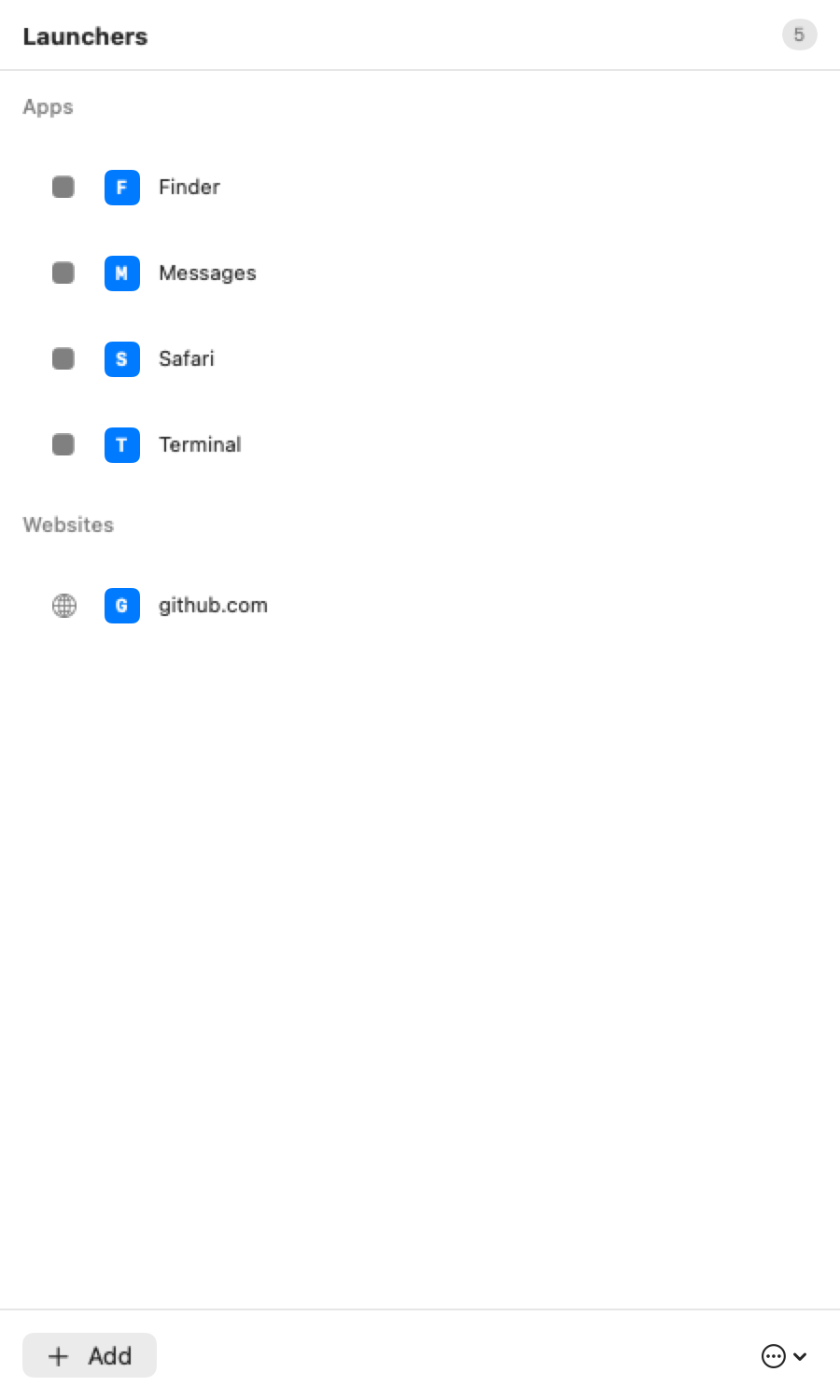
 Screenshot — Launchers tab with shortcut list:
  ┌─────────────────────────────────────────────────────────┐
  │  Launchers                                              │
  │                                                         │
  │  ┌─────────────────────────────────────────────────┐    │
  │  │  🧭  [ S ]  Safari                              │    │
  │  │  💻  [ T ]  Terminal                             │    │
  │  │  💬  [ M ]  Messages                             │    │
  │  │  📁  [ F ]  Finder                               │    │
  │  │  🌐  [ 1 ]  github.com                           │    │
  │  └─────────────────────────────────────────────────┘    │
  │                                                         │
  │  [ + Add Shortcut ]                [ ··· ]              │
  └─────────────────────────────────────────────────────────┘
When you assign a launcher, the overlay keyboard shows app icons on bound keys:
  ┌───┬───┬───┬───┬───┬───┬───┬───┬───┬───┐
  │   │   │   │   │   │   │   │   │   │   │
  ├───┼───┼───┼───┼───┼───┼───┼───┼───┼───┤
  │ 📅│ 🧭│ 💻│ 📁│   │   │   │ 💬│   │   │
  │Cal│Saf│Trm│Fnd│   │   │   │Msg│   │   │
  ├───┼───┼───┼───┼───┼───┼───┼───┼───┼───┤
  │   │   │   │   │   │   │   │   │   │   │
  └───┴───┴───┴───┴───┴───┴───┴───┴───┴───┘
  Bound keys show their app icon on the overlay
The launcher drawer
Click the drawer button (☰) on the overlay header to open the launcher drawer. It shows all your bindings at a glance, organized by type.
 Screenshot — Launcher drawer (slides out from overlay):
  ┌──────────────────────────┐
  │  Launchers            12 │ ← total count
  │                          │
  │  APPS                  5 │
  │  ┌──────────────────────┐│
  │  │ 🧭 [ S ] Safari     ││
  │  │ 💻 [ T ] Terminal    ││
  │  │ 💬 [ M ] Messages    ││
  │  │ 📝 [ V ] VS Code     ││
  │  │ 📅 [ C ] Calendar    ││
  │  └──────────────────────┘│
  │                          │
  │  WEBSITES              3 │
  │  ┌──────────────────────┐│
  │  │ 🌐 [ 1 ] github.com ││
  │  │ 🌐 [ 2 ] google.com ││
  │  │ 🌐 [ 3 ] dashboard  ││
  │  └──────────────────────┘│
  │                          │
  │  FOLDERS               2 │
  │  ┌──────────────────────┐│
  │  │ 📁 [ D ] Documents   ││
  │  │ 📁 [ K ] Desktop     ││
  │  └──────────────────────┘│
  │                          │
  │  [ + Add ]     [ ··· ]   │
  └──────────────────────────┘
Each row shows the key badge, the app/URL icon, and the target name. Click any row to highlight the corresponding key on the overlay. Right-click for edit and delete options.
Choosing an activation mode
KeyPath offers two ways to trigger your launcher bindings. You can change this in the Launchers tab settings.
 Screenshot — Activation mode picker (in Launchers tab settings):
  ┌─────────────────────────────────────────────┐
  │  Activation                                 │
  │                                             │
  │  ┌───────────┐ ┌───────────┐ ┌───────────┐ │
  │  │   Hold    │ │   Tap     │ │  Leader   │ │
  │  │  (Hyper)  │ │  Toggle   │ │    → L    │ │
  │  └───────────┘ └───────────┘ └───────────┘ │
  │   ^^^^^^^^^^                                │
  │   selected                                  │
  └─────────────────────────────────────────────┘
Hold to activate (default)
Hold Caps Lock (Hyper) and press a letter. The launcher layer is active only while you hold the key — release and you’re back to normal typing.
  Hold Caps Lock ──→ press S ──→ Safari opens
                     press T ──→ Terminal opens
  Release Caps Lock ──→ back to normal
Tap to toggle
Tap Caps Lock once to enter launcher mode. All your launcher keys light up on the overlay. Press a letter to launch, and you automatically return to normal mode.
Leader sequence
Tap the leader key, then type L to activate the launcher layer. This keeps Caps Lock free for other uses.
To change modes: Open the inspector panel, go to the Launchers tab, and click the settings button (☰) to access the activation mode picker.
Smart suggestions
KeyPath can suggest apps and websites to bind based on what you actually use:
- Browser history — Suggests your most-visited websites as URL bindings
- Recent apps — Shows apps you use frequently but haven’t bound yet
Open the inspector panel and click Suggestions to see personalized recommendations. One click to add any suggestion as a binding.
Pre-built starter sets
Don’t want to configure from scratch? KeyPath includes pre-built launcher collections:
- Quick Launcher — Popular apps pre-assigned to mnemonic keys (S = Safari, T = Terminal, etc.)
- URL Shortcuts — Common websites on the number row
Enable these in the Rules tab to get started immediately, then customize from there.
Tips
- Use mnemonic keys — S for Safari, T for Terminal, M for Messages. You’ll build muscle memory fast.
- Put URLs on the number row — 1 for GitHub, 2 for Google, 3 for your dashboard. Letters for apps, numbers for sites.
- Test before committing — Try the binding after saving to verify it works.
- Check the overlay — When you hold Caps Lock, bound keys show their app icons on the overlay. Unbound keys stay normal.
Troubleshooting
App not launching
- Make sure KeyPath is running (green status indicator in the menu bar)
- Verify the binding in the Launchers panel by trying the shortcut
- If the app name doesn’t resolve, try the full path (e.g.,
/Applications/Safari.app) - Check File → View Logs for error messages
Bindings not saving
- Make sure the Caps Lock remap rule is enabled (it provides the Hyper key that activates the launcher layer)
- Check that you’ve clicked Save after making changes
Related guides
- What You Can Build — See app launching in context with window tiling, shortcuts, and more
- Windows & App Shortcuts — App-specific keymaps and window snapping
- One Key, Multiple Actions — How the Hyper key’s tap-hold behavior works
- Keyboard Concepts — Background on layers and modifiers
- Action URI Reference — Technical deep link reference for integrating with Raycast, Alfred, and scripts
- Back to Docs — See all available guides
External resources
- Kanata configuration reference — For power users who want to edit configs directly
- Raycast — Pairs well with KeyPath for app launching
- Alfred — Another launcher that integrates with KeyPath