Symbols Without Shift
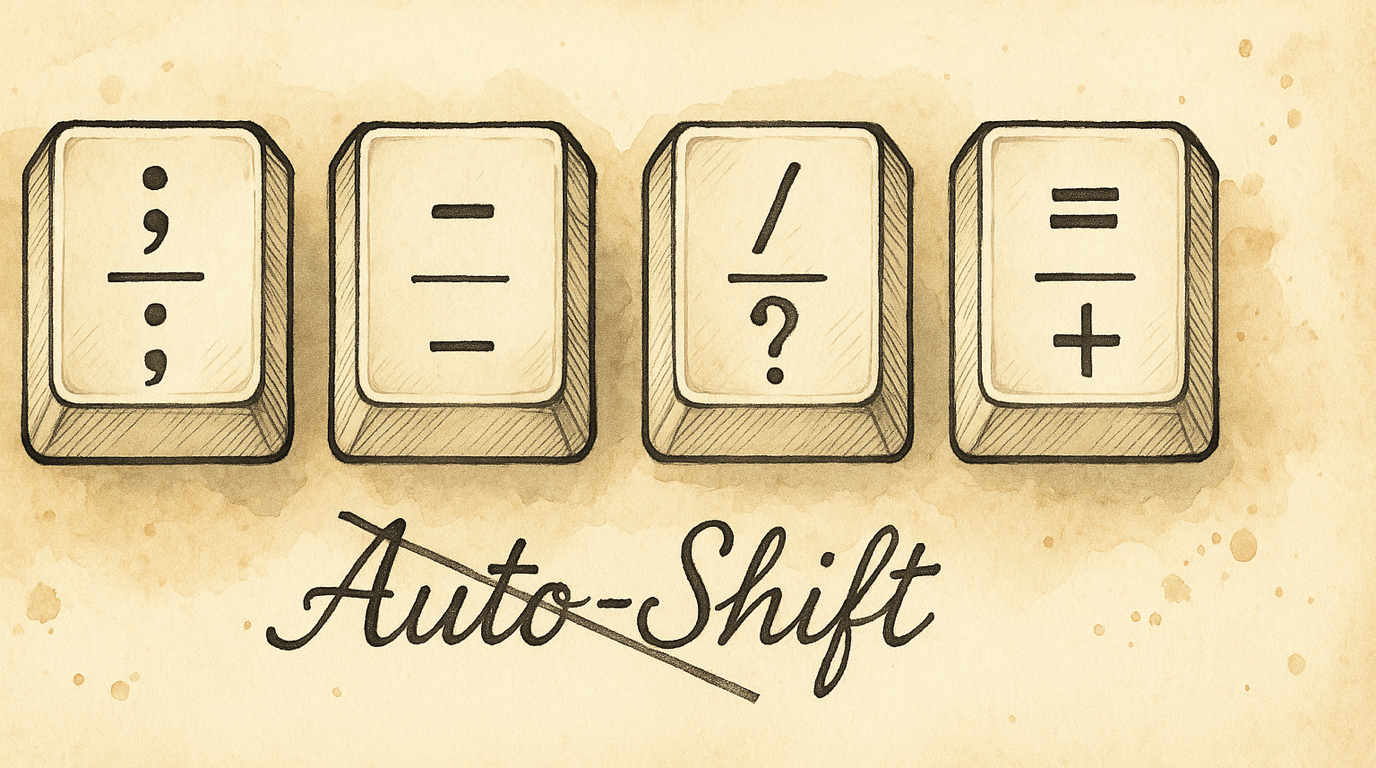
Every time you type !, @, {, or ~, your pinky reaches for Shift. That’s fine once in a while, but if you write code all day — brackets, pipes, underscores, tildes — it adds up. Auto-Shift lets you hold a symbol key slightly longer to get the shifted version. Tap . for a period; hold . for >. No Shift required.
Experimental: This feature is still being refined. It works well for most users, but timing interactions with other tap-hold features (like home row mods) may need tuning.
What It Does
Auto-Shift applies to symbol and punctuation keys only — not letters or numbers:
| Tap | Hold |
|---|---|
` |
~ |
- |
_ |
= |
+ |
[ |
{ |
] |
} |
\ |
\| |
; |
: |
' |
" |
, |
< |
. |
> |
/ |
? |
Each key can be individually enabled or disabled. By default all 11 are active.
Enabling It
- Open KeyPath and click the gear icon to open the inspector panel
- Go to the Rules tab
- Find Auto-Shift Symbols (in the Experimental section)
- Toggle it on
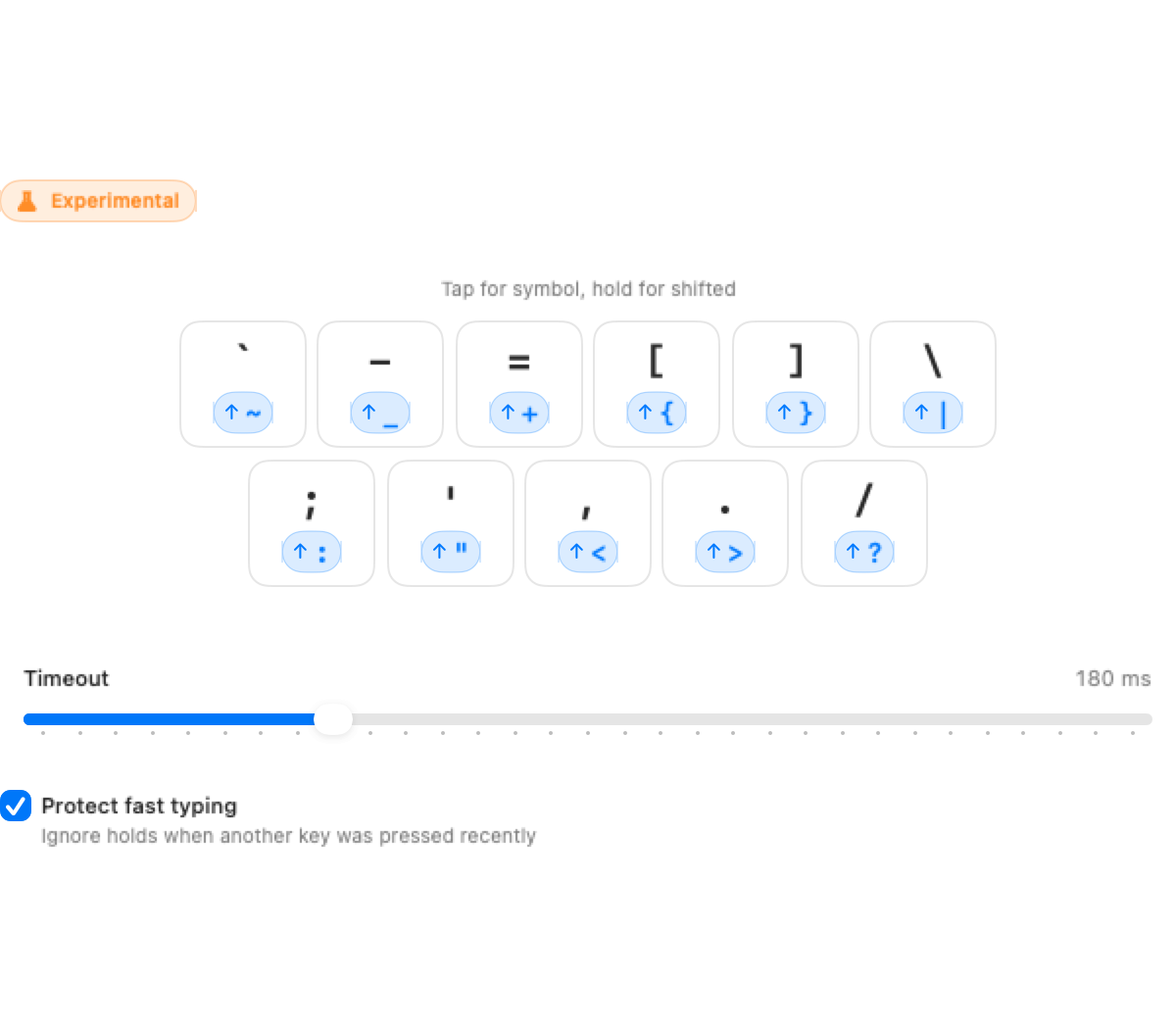
The configuration panel shows all 11 keys as toggleable chips — click any to disable it.
Timing
The timeout controls how long you hold before the shifted version fires:
- Default: 180ms — fast enough that normal typing isn’t affected, long enough that deliberate holds register
- Range: 100–400ms — use the slider to adjust
Finding your sweet spot:
- If you accidentally get shifted symbols while typing fast → increase the timeout
- If you have to hold too long to trigger shifts → decrease the timeout
Protect Fast Typing
When enabled (default: ON), this prevents accidental shifts during fast typing. If you just pressed another key recently, the hold won’t trigger — only deliberate pauses followed by a hold fire the shifted output.
This uses Kanata’s tap-hold-require-prior-idle setting under the hood.
Best Use Cases
- Programmers — brackets
[]{}, pipes|, tildes~, underscores_appear constantly in code - Markdown writers — backticks, angle brackets, and tildes without Shift
- Anyone with pinky strain from reaching for Shift on symbol-heavy text
Interaction with Home Row Mods
Auto-Shift and home row mods both use tap-hold behavior. They coexist well because they apply to different keys (HRM applies to letters, Auto-Shift to symbols). The “Protect Fast Typing” setting is shared — whichever feature sets a higher idle threshold wins.
If you notice interactions between the two, try:
- Increasing the auto-shift timeout slightly (200–250ms)
- Keeping “Protect Fast Typing” on
Troubleshooting
I get shifted symbols when I don’t want them
- Increase the timeout (try 250ms)
- Enable “Protect Fast Typing” if it’s off
- Disable specific keys that misfire for you (click their chips to toggle off)
The shifted symbol takes too long to appear
- Decrease the timeout (try 150ms)
- Note: there’s inherent latency because the engine waits to see if you’ll hold long enough
Semicolons/commas feel laggy
These keys are typed quickly in prose. If the brief hold detection delay bothers you, disable just those keys and keep auto-shift on the rest.
Next Steps
- Shortcuts Without Reaching — Home row mods for your letter keys (complementary to Auto-Shift for symbols)
- One Key, Multiple Actions — The tap-hold system that powers Auto-Shift under the hood
- Keyboard Concepts — Background on dual-role keys and timing
- Back to Docs