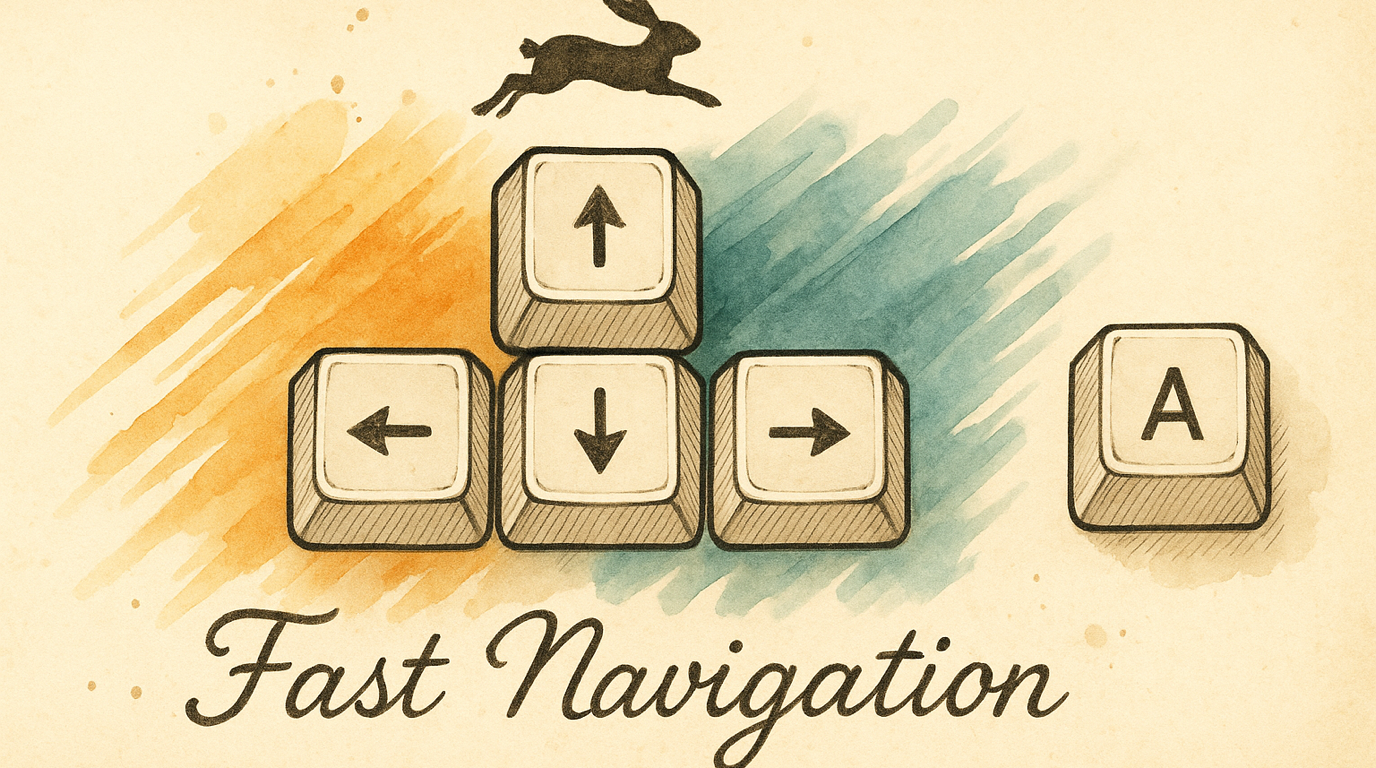
Arrow Keys and Delete at Full Speed
Your arrow keys move through text at the same sluggish speed as every other key. Holding → to get across a line takes forever. Holding Delete to clear a word feels like watching paint dry. Fast Navigation makes navigation and deletion keys repeat 3× faster while keeping regular typing steady — no accidental repeated characters.
What You Get
Enable Fast Navigation and you get per-key repeat speed control:
- Arrow keys (←→↑↓) — start repeating in 150ms, repeat every 20ms (~50 keys/sec)
- Delete (⌫) — starts in 210ms, repeats every 20ms
- Forward Delete — starts in 210ms, repeats every 20ms
- Regular keys (letters, numbers) — unchanged at system defaults (500ms delay, 30ms interval)
The result: hold an arrow key and it flies. Hold a letter and it stays steady.
Enabling It
Fast Navigation is enabled by default for new installations. To check or toggle:
- Open KeyPath and click the gear icon to open the inspector panel
- Go to the Rules tab
- Find Fast Navigation (hare icon)
- Toggle on/off or choose a preset
Presets
Three named presets to get started quickly:
| Preset | Arrow delay | Arrow interval | Feel |
|---|---|---|---|
| Balanced (default) | 150ms | 20ms (50/sec) | Fast arrows, steady text |
| Fast Navigation | 120ms | 15ms (67/sec) | Maximum speed for power users |
| Careful | 250ms | 35ms (29/sec) | Slower, fewer accidental repeats |
Select a preset card in the pack detail view. You can further customize in Settings.
Custom Settings
Click Settings… in the pack detail view to fine-tune:
Global defaults
- Delay — how long to hold before repeating starts (default: 500ms)
- Interval — time between repeats once started (default: 30ms)
Per-key overrides
- Arrow keys — toggle fast arrows on/off, adjust delay and interval independently
- Delete — toggle fast delete, adjust separately
- Forward Delete — toggle and adjust
- Custom keys — add any key to the override list with its own speed settings
The Test Area
The pack detail view includes a live test area: a text field where you can hold arrow keys and delete to feel the difference. Try holding an arrow, then holding a letter — the speed difference is immediately obvious.
How It Works
KeyPath uses Kanata’s defcfg key-repeat settings to set different speeds for different keys. Instead of the system-wide repeat rate (which applies uniformly to all keys), KeyPath configures:
- A slow global rate for regular typing keys (prevents accidental repeats)
- A fast override for navigation and deletion keys (makes cursor movement instant)
This is not a hack — it’s using the keyboard firmware’s built-in repeat control, just configured per-key instead of globally.
Tips
- Pair with Vim Navigation — fast arrow keys make the H/J/K/L navigation layer even snappier for long-distance moves
- Adjust delete carefully — too fast and you’ll overshoot. The 210ms delay gives you time to lift your finger.
- The test area is your friend — adjust values, then immediately feel the result in the test text field
- Works standalone — no dependency on any other pack
Troubleshooting
Arrow keys don’t feel faster
- Verify Fast Navigation is enabled (check the Rules tab)
- Make sure KeyPath’s service is running (green indicator)
- Check that System Settings → Keyboard → Key Repeat hasn’t overridden things — KeyPath’s settings take precedence when the service is active
I’m getting accidental repeated characters when typing
The global default delay (500ms) should prevent this. If you’ve lowered it:
- Go to Settings in the pack detail
- Increase the global delay back toward 500ms
- Only lower the per-key overrides for arrow/delete keys
I want different speeds for up/down vs. left/right
Currently all four arrow keys share the same override settings. Per-direction tuning is a potential future enhancement.
Next Steps
- Navigate Text Like a Keyboard Ninja — Combine fast arrows with home-row navigation
- Keyboard Concepts — Background on how KeyPath controls key behavior
- Back to Docs