Switching From Karabiner-Elements
If you’re using Karabiner-Elements and curious about KeyPath, this page maps the concepts you know to how KeyPath works — and helps you decide if switching makes sense.
Why consider switching?
Karabiner-Elements is an excellent tool that pioneered keyboard remapping on macOS. KeyPath builds on that foundation with a different engine (Kanata) that offers specific advantages:
| Karabiner-Elements | KeyPath | |
|---|---|---|
| Config format | JSON (verbose, complex) | Kanata S-expressions (concise) |
| Tap-hold | to_if_alone + timeout |
4 tap-hold variants, per-key tuning |
| Home row mods | Possible via complex JSON, global timeout, no misfire prevention | Built-in with opposite-hand activation, fast typing protection, per-finger timing |
| Per-finger timing | Global timeout only | Individual finger sensitivity |
| Layers | Separate rule sets | First-class deflayer with layer-switch |
| App-specific | Per-app rules via JSON | Automatic layer switching via TCP |
| Configuration | JSON editing or Karabiner UI | Visual UI + direct config editing |
| Engine | Custom C++ event tap | Kanata (Rust, purpose-built for tap-hold) |
Karabiner’s strengths that KeyPath doesn’t replicate:
- Massive community rule library with importable JSON rules
- Per-device targeting UI — apply different rules to each connected keyboard out of the box
- Longer track record (10+ years, widely trusted)
- Simpler mental model for basic remaps
Concept mapping
Here’s how Karabiner concepts translate to KeyPath:
Simple remaps
In Karabiner: Edit JSON to map one key to another.
In KeyPath: Open the Custom Rules tab, set your Start key and Finish key, click Save. KeyPath generates the configuration for you.
Tap-hold (dual-role keys)
In Karabiner: Write a complex JSON rule with to_if_alone and a timeout.
In KeyPath: Create a rule, enable the Hold, Double Tap, etc. toggle, and choose from four hold behavior options — Basic, Trigger Early, Quick Tap, or Custom Keys. Each offers different activation strategies. See the One Key, Multiple Actions guide for details.
Layers
In Karabiner: Create separate rule sets and manage profiles.
In KeyPath: Layers are a first-class concept. Create multiple layers in the UI and use tap-hold keys or dedicated layer-switch keys to move between them.
Complex modifications
In Karabiner: Import or hand-write complex JSON rules from the community library.
In KeyPath: Use the pre-built rule collections (Hyper Key, Home Row Mods, Quick Launcher, etc.) or create custom rules through the UI. KeyPath ships with 16 built-in rule collections that cover the most popular Karabiner complex modifications.
App-specific rules
In Karabiner: Per-app conditions in JSON rules.
In KeyPath: Go to the Custom Rules tab, click New Rule, select an app, and add your mappings. KeyPath switches layers automatically when you switch apps — no manual toggling needed. See the Window Management guide.
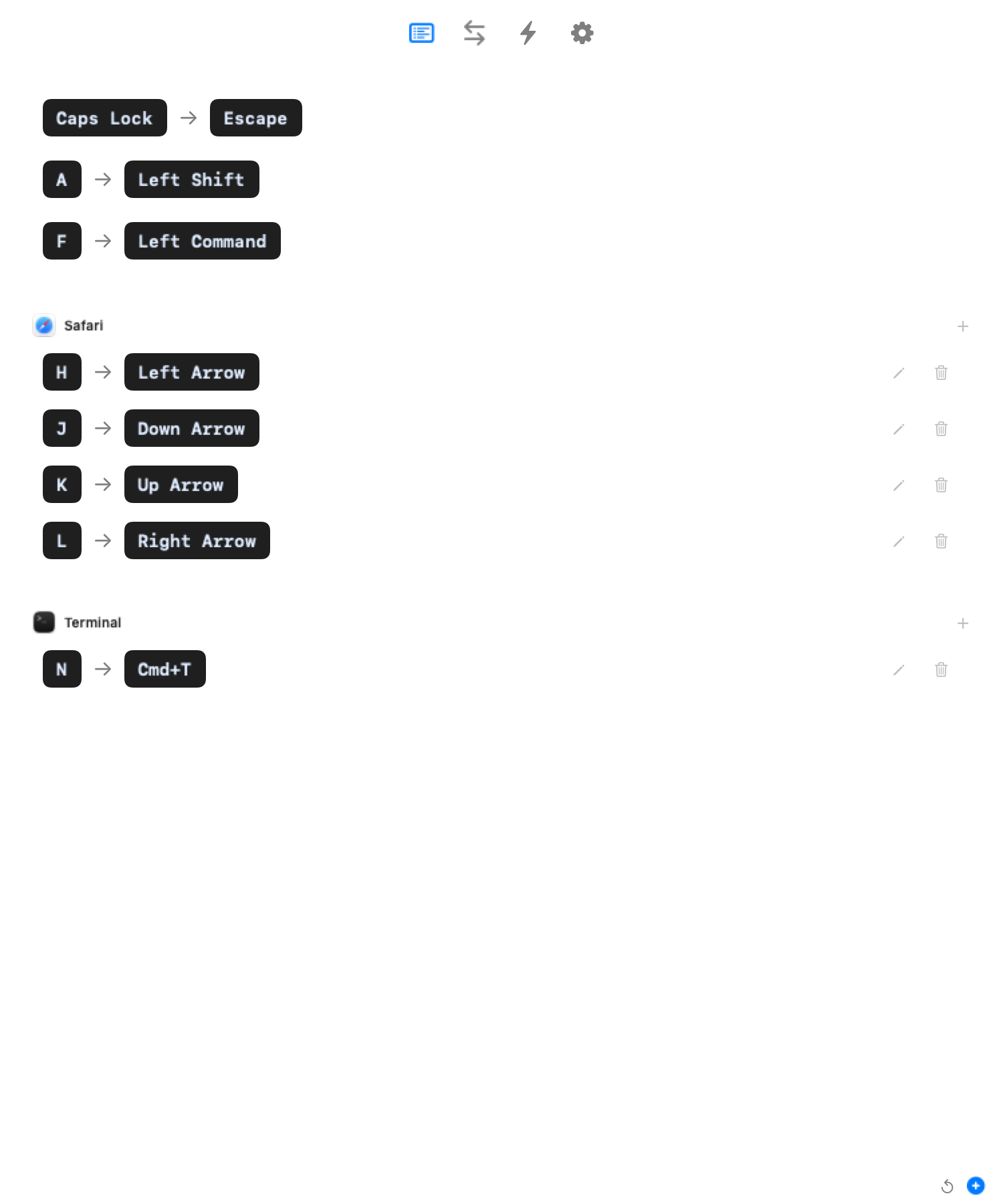 Screenshot — Custom Rules tab (what you’ll see instead of JSON):
  ┌─────────────────────────────────────────────────────┐
  │  Custom Rules                                       │
  │                                                     │
  │  ┌────────────────────────────────────────────────┐ │
  │  │  EVERYWHERE (global rules)                     │ │
  │  │  caps_lock ──→ escape                          │ │
  │  │  a (hold) ──→ left_shift                       │ │
  │  │  f (hold) ──→ left_command                     │ │
  │  └────────────────────────────────────────────────┘ │
  │                                                     │
  │  ┌────────────────────────────────────────────────┐ │
  │  │  🧭 SAFARI                            [✏] [🗑] │ │
  │  │  h ──→ left_arrow                              │ │
  │  │  j ──→ down_arrow                              │ │
  │  └────────────────────────────────────────────────┘ │
  │                                                     │
  │  [ ↺ Reset ]                     [ + New Rule ]     │
  └─────────────────────────────────────────────────────┘
  No JSON editing — visual rule cards with edit/delete.
What you’ll gain
- Better tap-hold — Kanata offers four tap-hold variants with per-key timing, giving you more control over dual-role key behavior. See Shortcuts Without Reaching.
- Split-hand detection — Cross-hand keypresses activate modifiers, same-hand keypresses produce letters. This reduces home row mod misfires significantly.
Home row mods comparison
This is where the difference is most noticeable. If you use home row mods in Karabiner, you’ll find KeyPath significantly more capable:
| Aspect | KeyPath | Karabiner-Elements |
|—|—|—|
| Tap-hold variants | 4 variants, tunable per key | Single to_if_alone |
| Split-hand detection | Built-in | Requires complex JSON rules |
| Per-finger timing | Per-key offsets via sliders | Global timeout only |
| Layer integration | Hold-activate layers | Separate rule sets |
| Configuration | Visual UI with sliders | JSON editing |
| Engine | Kanata (purpose-built for tap-hold) | General-purpose JSON rules |
- Readable config — A typical remap takes 3 lines of Kanata vs 20+ lines of Karabiner JSON.
- App launching — Built-in app launching for launching apps, opening URLs, and tiling windows from your keyboard.
- Visual configuration — KeyPath’s UI lets you configure without editing JSON or config files directly.
What you’ll lose (temporarily)
- Community rule library — Karabiner’s importable modifications library has thousands of user-contributed rules. KeyPath ships with 19 built-in packs and can import your existing Karabiner config, but doesn’t yet support a community sharing marketplace.
- Some edge-case rules — Karabiner’s JSON is extremely flexible. Some exotic conditions (mouse button combinations, device-specific vendor IDs with complex conditions) may require creative workarounds in Kanata.
- Track record — Karabiner has been trusted for 10+ years. KeyPath is newer. Both are open source, so you can verify the code yourself.
Can I run both?
Not simultaneously. Both tools intercept keyboard events at the system level, and running two event interceptors causes conflicts (dropped keys, double-presses, system instability). You should fully disable or uninstall Karabiner before using KeyPath.
KeyPath’s installer wizard will detect running Karabiner processes and warn you if there’s a conflict.
Note: KeyPath uses the same Karabiner VirtualHIDDevice driver for its virtual keyboard. If you already have Karabiner installed, this driver is already present and approved.
Migration steps
1. Document your current setup
Before uninstalling Karabiner, export or screenshot your rules:
# Your Karabiner config is at:
cat ~/.config/karabiner/karabiner.json

# Or copy it somewhere safe:
cp ~/.config/karabiner/karabiner.json ~/Desktop/karabiner-backup.json
2. Install KeyPath
Follow the Installation guide. KeyPath’s wizard handles permissions and driver setup.
3. Quit Karabiner
Quit Karabiner-Elements from its menu bar icon, or:
# Quit Karabiner
osascript -e 'quit app "Karabiner-Elements"'

# Optionally stop the daemon
launchctl bootout system/org.pqrs.karabiner.karabiner_grabber 2>/dev/null
4. Import your Karabiner config
KeyPath can automatically convert most of your Karabiner rules. Two ways to import:
During setup (recommended): KeyPath’s installation wizard detects ~/.config/karabiner/karabiner.json and offers one-click import. You can review which rules will convert, see warnings for unsupported features, and choose which to import.

From the command line:
# Import from your Karabiner config
keypath import karabiner ~/.config/karabiner/karabiner.json

# Import a specific profile (by index)
keypath import karabiner ~/.config/karabiner/karabiner.json --profile=1

# Merge all rules into one collection
keypath import karabiner ~/.config/karabiner/karabiner.json --collection="My Karabiner Rules"
The converter handles simple remaps, tap-hold rules, chords, app-specific conditions, shell commands, and macros. About 95% of typical configs convert to working rules.
What gets skipped (with warnings):
- Mouse button rules
- Input source switching
- Variable-gated conditions (Karabiner’s layer-via-variables pattern)
- Pointing device rules
If you see skipped rules, you can usually recreate them using KeyPath’s native features — layers, packs, or the Action URI system.
5. Or start fresh with packs
If your Karabiner config is simple, you might prefer starting fresh with KeyPath’s built-in packs instead of importing:
- Caps Lock Remap — one click
- Home Row Mods — much easier than the Karabiner JSON version
- Home Row Arrows — hold F for arrow keys
- Vim Navigation — the full navigation layer
Browse the Pack Gallery for everything available.
6. Fine-tune
KeyPath’s per-finger timing, opposite-hand activation, and fast typing protection may mean you need less tweaking than your Karabiner setup required. Start with defaults and adjust from there.
Common Karabiner rules → KeyPath equivalents
| Karabiner Rule | KeyPath Equivalent |
|---|---|
| Caps Lock → Escape | Pre-built “Caps Lock Remap” rule |
| Caps Lock → Escape/Control | Pre-built rule with tap-hold |
| Caps Lock → Hyper | Pre-built “Caps Lock Remap” → Hyper mode |
| Home row mods | Pre-built “Home Row Mods” rule |
| Vi-style arrows (HJKL) | Custom rule or What You Can Build |
| App-specific shortcuts | Custom Rules tab |
| Launch apps from keyboard | app launching |
| Window snapping | Window Management |
Karabiner feature parity
Not every Karabiner feature has a direct KeyPath equivalent yet. Here’s the current state:
| Karabiner Feature | KeyPath Status | Notes |
|---|---|---|
| Simple remaps | Full support | defsrc / deflayer |
Tap-hold / to_if_alone |
Full support | 4 variants, more control than Karabiner |
| Layers | Full support | First-class deflayer with layer-switch / layer-toggle |
| App-specific rules | Full support | Automatic layer switching via TCP |
| Simultaneous key combos | Full support | Kanata chord action |
| Mouse button remapping | Partial | Kanata supports mouse keys, but Karabiner’s mouse button conditions are more flexible |
| Device-specific rules | Partial | Kanata’s device-if works in raw config, but no UI yet (see #203) |
| Complex variable conditions | Partial | Kanata’s switch action covers most cases, but some multi-variable conditions need restructuring |
| Profile switching | Not yet | Karabiner lets you switch between profiles; KeyPath uses a single config with layers |
| Community rule import | Partial | 16 built-in collections, but no community sharing or import yet (Karabiner has thousands) |
| Pointing device rules | Limited | Kanata has mouse key support but not Karabiner’s full pointing device condition system |
Config import
KeyPath includes a built-in Karabiner config converter — see step 4 above for how to use it. The converter handles ~95% of typical configs. For rules that don’t convert automatically, you can recreate them using KeyPath’s visual rule editor or the CLI.
Further reading
- Keyboard Concepts — If you want a refresher on the fundamentals
- Shortcuts Without Reaching — Where KeyPath really shines
- One Key, Multiple Actions — All four tap-hold variants explained
- What You Can Build — Concrete examples of KeyPath setups
- Launching Apps — Launch apps, URLs, and window actions
- Alternative Layouts — Colemak, Dvorak, and other keymaps supported by KeyPath
- Keyboard Layouts — Physical keyboard support (ANSI, split, ergonomic)
- Privacy & Permissions — How KeyPath’s permission model compares
- Karabiner-Elements — Karabiner’s official site ↗
- Complex Modifications — Karabiner’s community rule library ↗
- Back to Docs