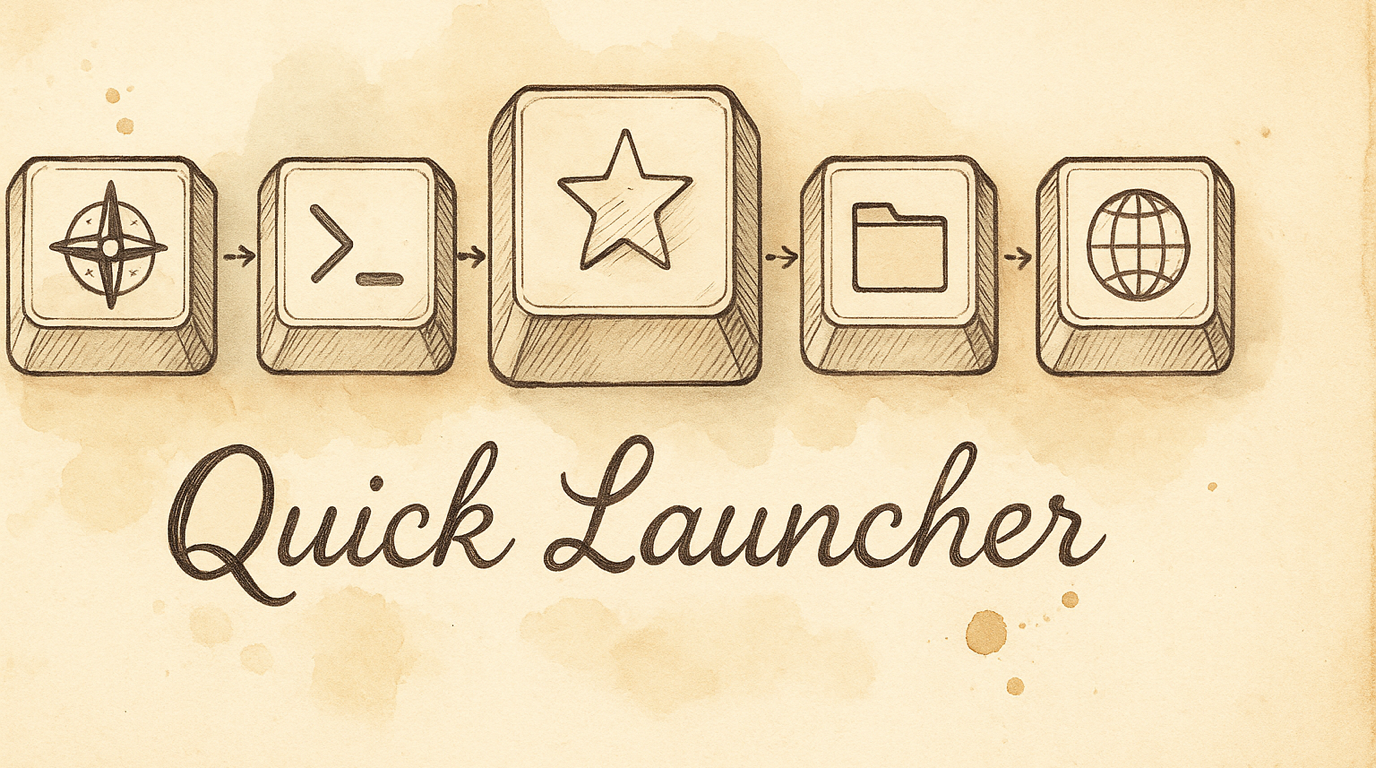
Launch Anything With One Keystroke
You’re in the middle of typing and need to jump to Safari, or open a URL, or fire up Terminal. Normally that means reaching for the Dock, Spotlight, or a launcher app — breaking your flow. With the Quick Launcher, you hold one key and press a letter. App opens instantly. Hands never leave the keyboard.
What You Get
Enable the Quick Launcher pack and you get a dedicated launcher layer on your keyboard:
- Hold Hyper + press a letter → launch the assigned app, URL, folder, or script
- Visual overlay → the keyboard overlay shows app icons on mapped keys so you always know what’s where
- Instant dismiss → release Hyper and you’re back to typing
Default mappings ship ready to use: S = Safari, T = Terminal, F = Finder, G = GitHub. Customize from there.
Enabling It
- Open KeyPath and click the gear icon to open the inspector panel
- Go to the Rules tab
- Find Quick Launcher in the Productivity section
- Toggle it on
The Quick Launcher uses the Hyper key (all four modifiers at once). If you haven’t set up a Hyper key yet, enable the Caps Lock Remap pack first — it turns Caps Lock hold into Hyper.
How It Works
- Hold the Hyper key (default: hold Caps Lock)
- The overlay switches to show your launcher mappings — each key displays the icon of its assigned app or action
- Press a letter to launch that app/URL/folder
- Release Hyper — you’re back to normal typing
Unmapped keys appear dimmed. The overlay disappears automatically after you launch something.
Configuring Your Launcher
Adding a mapping
- In the Quick Launcher pack detail view, click any empty key on the keyboard visualization
- Choose what to assign:
- App — pick from installed applications
- URL — enter a web address (opens in default browser)
- Folder — pick a folder to open in Finder
- Script — select a script to execute
- The key now shows the app icon on the overlay
Removing or changing a mapping
Click any mapped key in the visualization to reassign or clear it.
Activation modes
The Quick Launcher supports two trigger styles:
| Mode | How it works |
|---|---|
| Hyper Hold (default) | Hold Hyper key, press a letter, release Hyper |
| Hyper Tap | Tap Hyper to toggle the launcher layer on/off, then press a letter |
Change the activation mode in the pack settings.
Tips
- Keys are suggested in home-row-first order for ergonomics — start with the home row and work outward
- You can map any letter (a–z), number (0–9), or punctuation key
- The “Suggest from History” button scans your browser history and suggests frequently-visited sites to map
- Quick Launcher works alongside all other KeyPath features — your home row mods, app-specific rules, and tap-hold keys all coexist
Troubleshooting
Nothing happens when I press Hyper + a key
- Verify the Quick Launcher pack is enabled (check the Rules tab)
- Verify your Hyper key is working — the overlay should show “✦” on Caps Lock when held
- Check that the key you’re pressing has a mapping assigned
The overlay doesn’t appear
- Make sure the overlay isn’t hidden (check the menu bar icon)
- Check that KeyPath’s service is running (green indicator in the overlay header)
Next Steps
- Launching Apps & Workflows — The full action URI system for power users (scripts, window tiling, deep links)
- Keyboard Concepts — Background on the Hyper key and layers
- What You Can Build — See the Quick Launcher as part of a complete keyboard workflow
- One Key, Multiple Actions — Fine-tune the Hyper key’s tap vs. hold behavior
- Back to Docs