Alternative Layouts
Most people type on QWERTY — a layout designed in the 1870s to prevent typewriter jams, not for comfort or speed. Alternative layouts rearrange the keys to put the most-used letters on the home row, reduce finger travel, and promote comfortable typing patterns.
KeyPath supports 8 keymaps out of the box, and its keyboard overlay updates instantly when you switch — so you can see the new layout right on your screen while you learn.
Why consider switching?
The case for an alternative layout comes down to ergonomics:
  QWERTY home row:          Colemak home row:
  ┌───┬───┬───┬───┬───┐    ┌───┬───┬───┬───┬───┐
  │ A │ S │ D │ F │ G │    │ A │ R │ S │ T │ D │
  └───┴───┴───┴───┴───┘    └───┴───┴───┴───┴───┘
    ↑                         ↑
    32% of English on         74% of English on
    the home row              the home row
On QWERTY, your fingers leave the home row for most letters. On an ergonomic layout like Colemak or Dvorak, the most frequent letters are right under your fingertips. Less reaching means less strain, especially over long typing sessions.
That said, switching layouts is a commitment — expect weeks of slower typing before you regain speed. Many people find it worthwhile; others prefer to stay on QWERTY and use Shortcuts Without Reaching or a Hyper key instead.
Supported layouts
Colemak
The most popular QWERTY alternative. Moves 17 keys but keeps many common shortcuts (Z, X, C, V) in their QWERTY positions.
  ┌───┬───┬───┬───┬───┬───┬───┬───┬───┬───┐
  │ Q │ W │ F │ P │ G │ J │ L │ U │ Y │ ; │
  ├───┼───┼───┼───┼───┼───┼───┼───┼───┼───┤
  │ A │ R │ S │ T │ D │ H │ N │ E │ I │ O │  ← home row
  ├───┼───┼───┼───┼───┼───┼───┼───┼───┼───┤
  │ Z │ X │ C │ V │ B │ K │ M │ , │ . │ / │
  └───┴───┴───┴───┴───┴───┴───┴───┴───┴───┘
Best for: People who want better ergonomics but don’t want to relearn every shortcut. Cut/Copy/Paste stay in the same spot.
Colemak-DH
A modern refinement of Colemak that moves D and H off the center column to reduce lateral finger stretches — especially useful on columnar and split keyboards.
  ┌───┬───┬───┬───┬───┬───┬───┬───┬───┬───┐
  │ Q │ W │ F │ P │ B │ J │ L │ U │ Y │ ; │
  ├───┼───┼───┼───┼───┼───┼───┼───┼───┼───┤
  │ A │ R │ S │ T │ G │ M │ N │ E │ I │ O │  ← home row
  ├───┼───┼───┼───┼───┼───┼───┼───┼───┼───┤
  │ Z │ X │ C │ D │ V │ K │ H │ , │ . │ / │
  └───┴───┴───┴───┴───┴───┴───┴───┴───┴───┘
Best for: Split and columnar keyboard users. If you own a Corne, Sofle, or Kinesis, this is a strong choice.
Dvorak
The classic alternative layout, designed in the 1930s. Emphasizes hand alternation and puts all vowels on the left home row.
  ┌───┬───┬───┬───┬───┬───┬───┬───┬───┬───┐
  │ ' │ , │ . │ P │ Y │ F │ G │ C │ R │ L │
  ├───┼───┼───┼───┼───┼───┼───┼───┼───┼───┤
  │ A │ O │ E │ U │ I │ D │ H │ T │ N │ S │  ← home row
  ├───┼───┼───┼───┼───┼───┼───┼───┼───┼───┤
  │ ; │ Q │ J │ K │ X │ B │ M │ W │ V │ Z │
  └───┴───┴───┴───┴───┴───┴───┴───┴───┴───┘
Best for: People who want maximum home row usage and don’t mind relearning all shortcuts. Dvorak is built into every operating system.
Workman
Designed to reduce lateral finger movement and prioritize comfortable key positions based on actual finger mechanics, not just distance.
  ┌───┬───┬───┬───┬───┬───┬───┬───┬───┬───┐
  │ Q │ D │ R │ W │ B │ J │ F │ U │ P │ ; │
  ├───┼───┼───┼───┼───┼───┼───┼───┼───┼───┤
  │ A │ S │ H │ T │ G │ Y │ N │ E │ O │ I │  ← home row
  ├───┼───┼───┼───┼───┼───┼───┼───┼───┼───┤
  │ Z │ X │ M │ C │ V │ K │ L │ , │ . │ / │
  └───┴───┴───┴───┴───┴───┴───┴───┴───┴───┘
Best for: People who find Colemak’s same-hand sequences uncomfortable and want a layout that feels natural for extended typing.
Graphite
A newer layout optimized for low finger travel with 65% home row usage and balanced hand distribution.
  ┌───┬───┬───┬───┬───┬───┬───┬───┬───┬───┐
  │ B │ L │ D │ W │ Z │ Y │ O │ U │ J │ ; │
  ├───┼───┼───┼───┼───┼───┼───┼───┼───┼───┤
  │ N │ R │ T │ S │ G │ P │ H │ A │ E │ I │  ← home row
  ├───┼───┼───┼───┼───┼───┼───┼───┼───┼───┤
  │ Q │ X │ M │ C │ V │ K │ F │ , │ . │ / │
  └───┴───┴───┴───┴───┴───┴───┴───┴───┴───┘
Best for: People who want cutting-edge optimization and are comfortable with a layout that doesn’t prioritize QWERTY shortcut compatibility.
AZERTY
The standard French keyboard layout, used in France and Belgium. Swaps A/Q and Z/W from QWERTY and moves M to the home row.
  ┌───┬───┬───┬───┬───┬───┬───┬───┬───┬───┐
  │ A │ Z │ E │ R │ T │ Y │ U │ I │ O │ P │
  ├───┼───┼───┼───┼───┼───┼───┼───┼───┼───┤
  │ Q │ S │ D │ F │ G │ H │ J │ K │ L │ M │  ← home row
  ├───┼───┼───┼───┼───┼───┼───┼───┼───┼───┤
  │ W │ X │ C │ V │ B │ N │ , │ ; │ : │ ! │
  └───┴───┴───┴───┴───┴───┴───┴───┴───┴───┘
Best for: French-speaking users who need the standard national layout displayed in KeyPath’s overlay.
QWERTZ
The standard German keyboard layout, also used across Central Europe. The main difference from QWERTY is swapped Y and Z keys.
  ┌───┬───┬───┬───┬───┬───┬───┬───┬───┬───┐
  │ Q │ W │ E │ R │ T │ Z │ U │ I │ O │ P │
  ├───┼───┼───┼───┼───┼───┼───┼───┼───┼───┤
  │ A │ S │ D │ F │ G │ H │ J │ K │ L │ ö │  ← home row
  ├───┼───┼───┼───┼───┼───┼───┼───┼───┼───┤
  │ Y │ X │ C │ V │ B │ N │ M │ , │ . │ - │
  └───┴───┴───┴───┴───┴───┴───┴───┴───┴───┘
Best for: German-speaking users who want the correct national layout in KeyPath’s overlay.
How to switch in KeyPath
Changing your keyboard overlay to a different layout takes two clicks:
- Open KeyPath — the keyboard overlay appears
- Click the gear icon on the overlay to reveal the settings tabs
- Click the Keymap tab
- Click any layout card — the overlay updates instantly
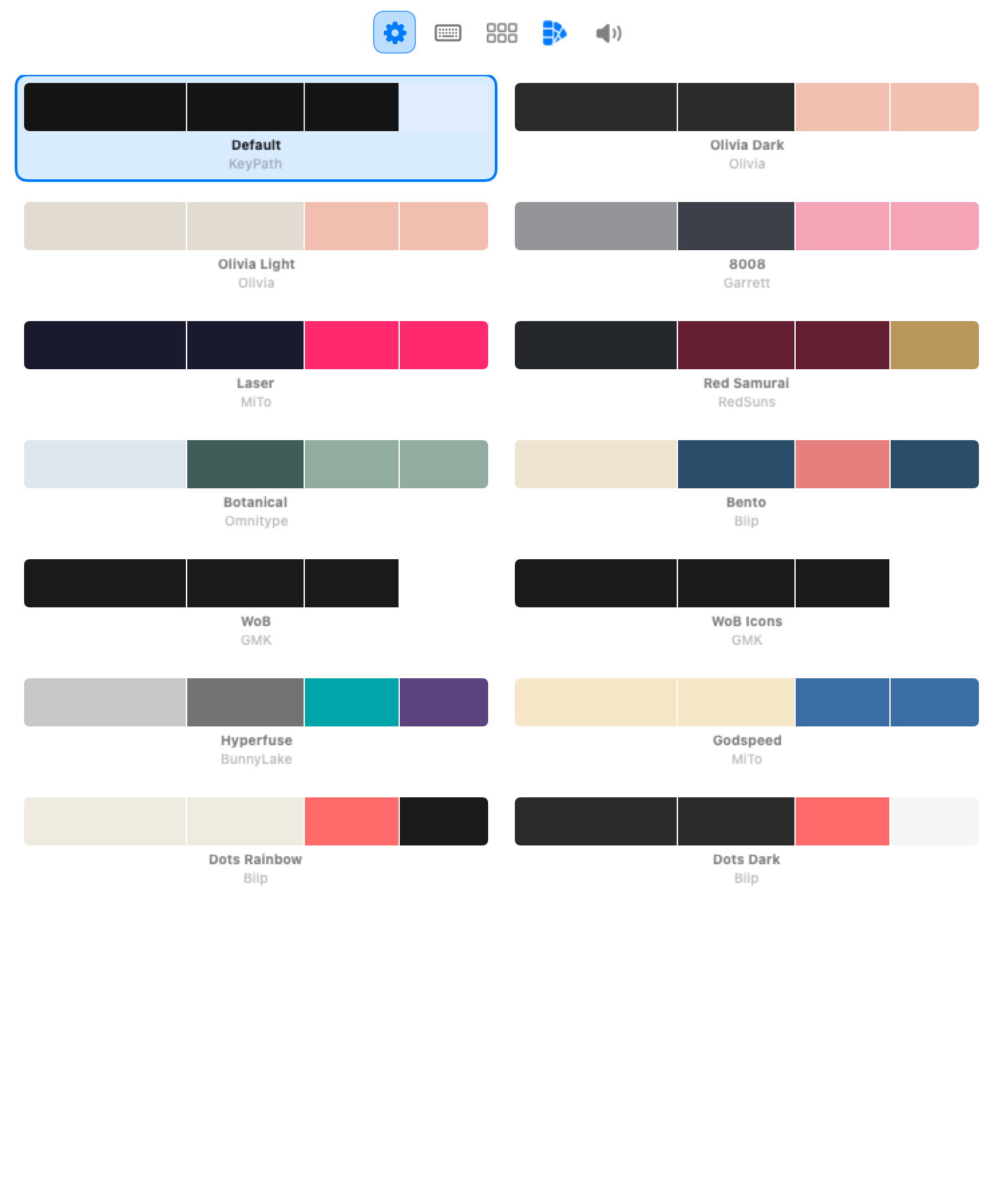 Screenshot — Settings toolbar (after clicking the gear):
  ┌─────────────────────────────────────────────────────┐
  │                                                     │
  │     [ Keymap ]  [ Layout ]  [ Keycaps ]  [ Sounds ] │
  │       ^^^^^^^                                       │
  │       selected                                      │
  └─────────────────────────────────────────────────────┘
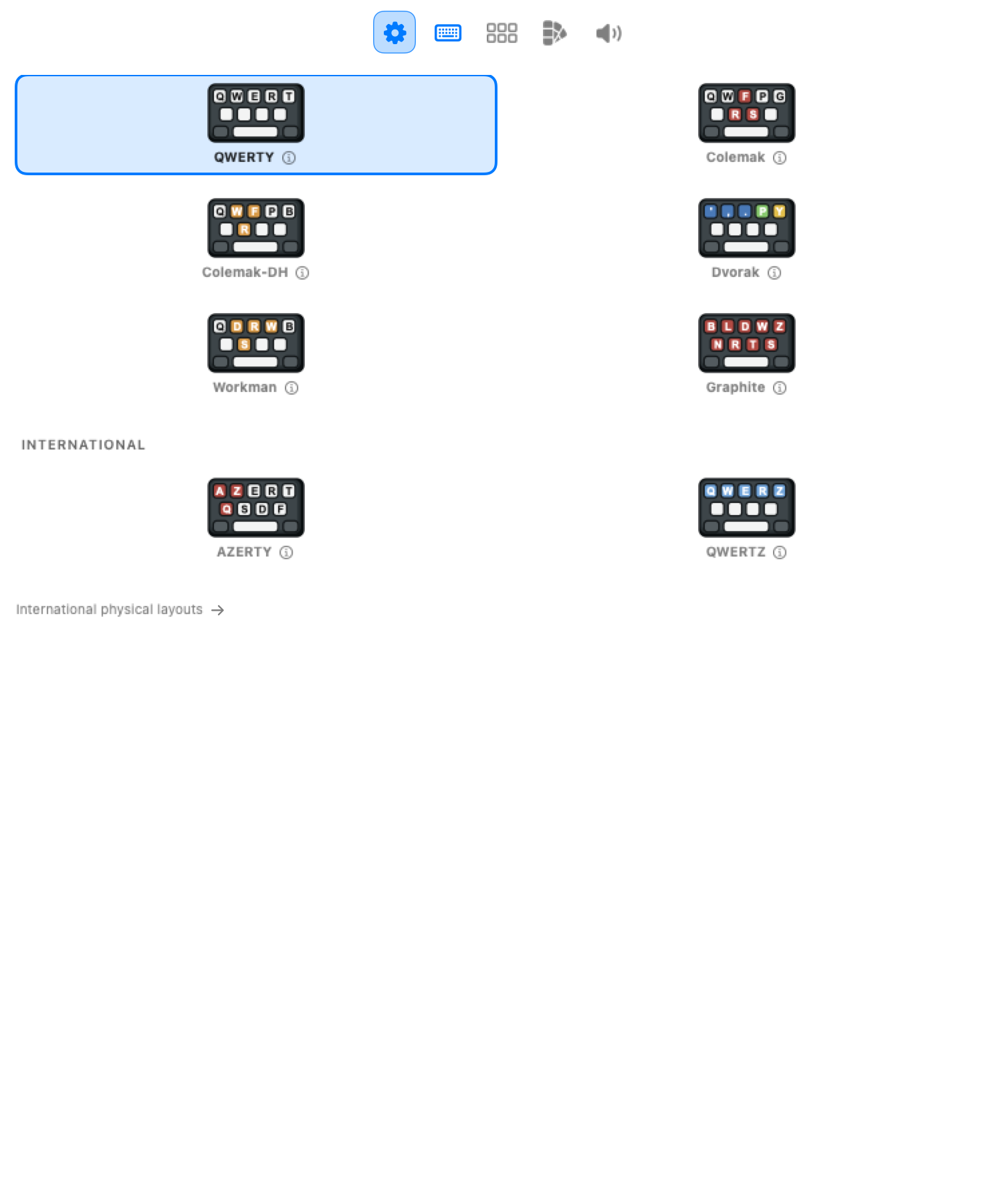 Screenshot — Keymap picker (2-column grid of layout cards):
  ┌─────────────────────────────────────────────────────┐
  │  Keymap                                             │
  │                                                     │
  │  ┌──────────────┐  ┌──────────────┐                 │
  │  │  ▣ QWERTY    │  │    Dvorak    │                 │
  │  │  (selected)  │  │              │                 │
  │  └──────────────┘  └──────────────┘                 │
  │  ┌──────────────┐  ┌──────────────┐                 │
  │  │   Colemak    │  │  Colemak-DH  │                 │
  │  │              │  │              │                 │
  │  └──────────────┘  └──────────────┘                 │
  │  ┌──────────────┐  ┌──────────────┐                 │
  │  │   Workman    │  │   Graphite   │                 │
  │  │              │  │              │                 │
  │  └──────────────┘  └──────────────┘                 │
  │                                                     │
  │  INTERNATIONAL                                      │
  │  ┌──────────────┐  ┌──────────────┐                 │
  │  │    AZERTY    │  │   QWERTZ     │                 │
  │  └──────────────┘  └──────────────┘                 │
  └─────────────────────────────────────────────────────┘
KeyPath doesn’t change your operating system’s input method — it works alongside it. The overlay shows you which physical key produces which character under your chosen layout, and your remapping rules adapt automatically.
Tip: If you’re learning a new layout, keep the KeyPath overlay visible on your desktop as a cheat sheet. As you build muscle memory, you’ll glance at it less.
Tips for learning a new layout
- Start with 15 minutes a day. Don’t switch cold turkey — practice on a typing tutor alongside your regular layout.
- Use KeyPath’s overlay as a visual reference. It shows the layout on your actual keyboard.
- Expect 2-4 weeks of slower typing before you start to feel comfortable. Most people reach their QWERTY speed in 1-3 months.
- Keep shortcuts familiar. Layouts like Colemak preserve Z/X/C/V positions, so Cut/Copy/Paste still work. On Dvorak, consider remapping shortcuts separately.
- Combine with Home Row Mods. Shortcuts Without Reaching work with any layout — the modifier positions adapt to wherever the home row letters are.
Related guides
- Keyboard Concepts — Layers, modifiers, and tap-hold fundamentals
- Keyboard Layouts — Physical keyboard support (ANSI, split, ergonomic)
- Shortcuts Without Reaching — Modifiers on the home row, compatible with any layout
- What You Can Build — All KeyPath features at a glance
- One Key, Multiple Actions — Fine-tune dual-role key behavior
- Back to Docs
External resources
- Colemak — Official Colemak site with learning resources
- Colemak-DH — The DH modification explained
- Workman Layout — Workman’s design philosophy
- Graphite — Graphite layout source and analysis
- KeyBr — Free typing tutor that supports alternative layouts
- MonkeyType — Typing practice and speed testing
- Ben Vallack’s layout journey — One person’s transition through multiple layouts