
Works With Your Keyboard
Whether you type on a MacBook, a full-size desktop keyboard, or a 34-key split ergonomic board, KeyPath adapts to match. Select your keyboard and the overlay shows your actual layout — the right keys in the right positions, so your rules and visual feedback always make sense.
Why it matters
Your keyboard’s physical layout determines which keys exist, where they are, and how KeyPath’s overlay and remapping rules map onto them. A rule configured for a full-size keyboard might reference keys that don’t exist on a 40% board. KeyPath handles this by tailoring the overlay and rule display to your selected physical layout.
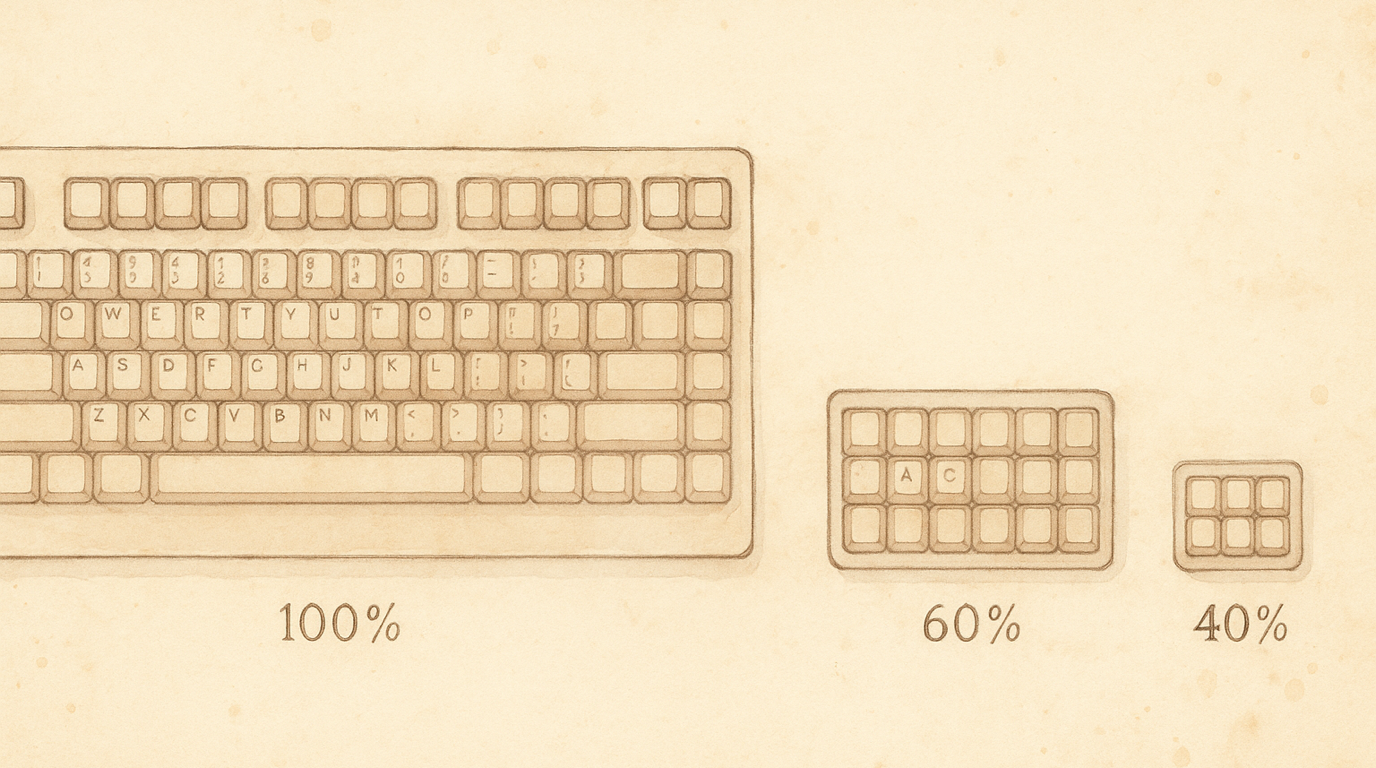
Supported keyboards
KeyPath includes layouts for 12 keyboards across three categories:
Standard ANSI
Traditional staggered-row keyboards in various sizes. These are what most people use.
| Layout | Keys | Description |
|---|---|---|
| ANSI 100% | ~104 | Full-size with number pad, function row, and navigation cluster |
| ANSI 80% (TKL) | ~87 | Tenkeyless — drops the number pad, keeps everything else |
| ANSI 75% | ~84 | Compact with function row and arrow keys, minimal gaps |
| ANSI 65% | ~68 | No function row, keeps arrow keys and a few nav keys |
| ANSI 60% | ~61 | No function row, no arrows — a popular minimalist choice |
| ANSI 40% | ~40 | Letters and modifiers only — everything else on layers |
| HHKB | 60 | Happy Hacking Keyboard — Unix-inspired 60% with Control where Caps Lock is |
Split & Ergonomic
Split keyboards place each hand on its own half, allowing a natural shoulder-width typing position. Most use columnar (non-staggered) key columns, which align better with how fingers naturally move.
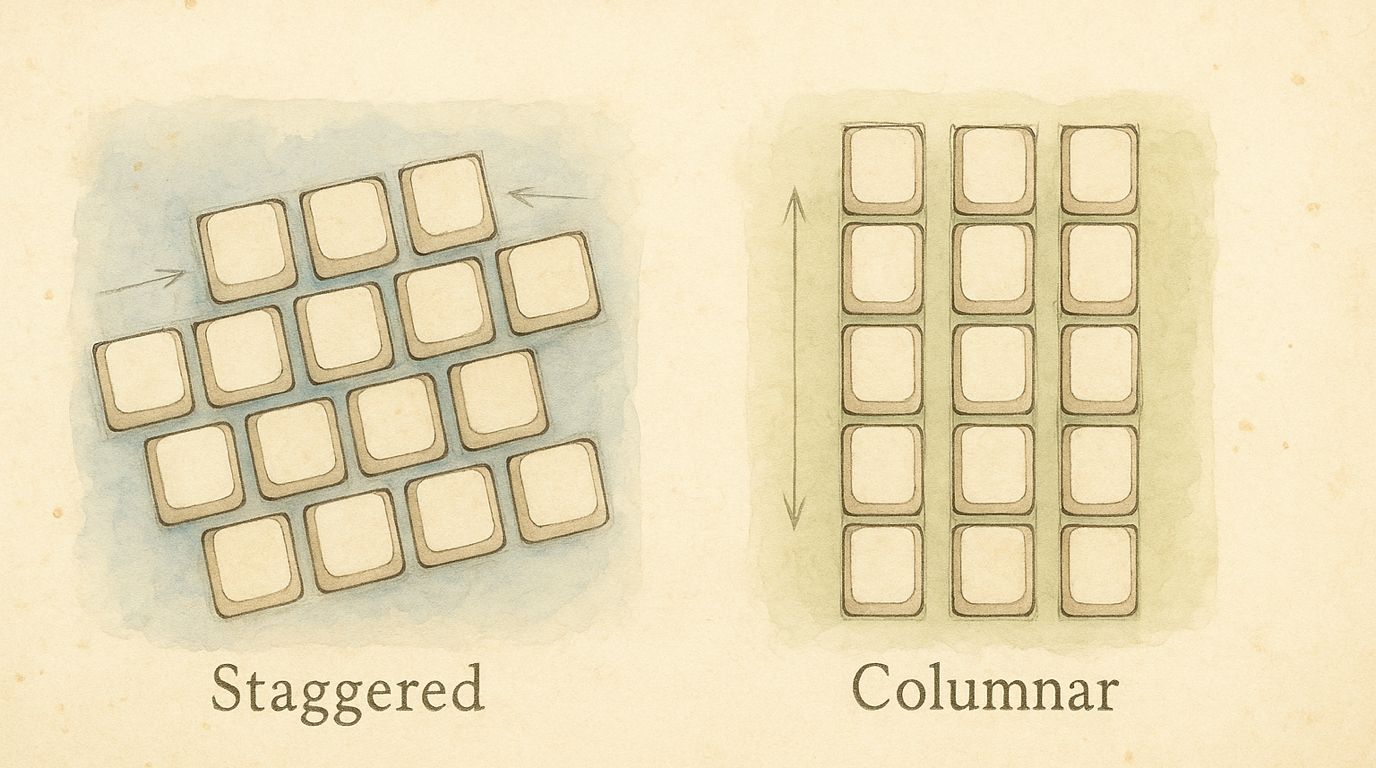
| Layout | Keys | Description |
|---|---|---|
| Corne | 42 | Popular 3x6 split with 3 thumb keys per side. The go-to starter split keyboard |
| Cornix | 40 | Compact 3x5+3 variant of the Corne with fewer outer columns |
| Ferris Sweep | 34 | Ultra-minimalist 3x5+2 split — only 34 keys total, heavy layer use |
| Sofle | 58 | 4x6 split with encoder knobs and an extra row — more keys for easier transition |
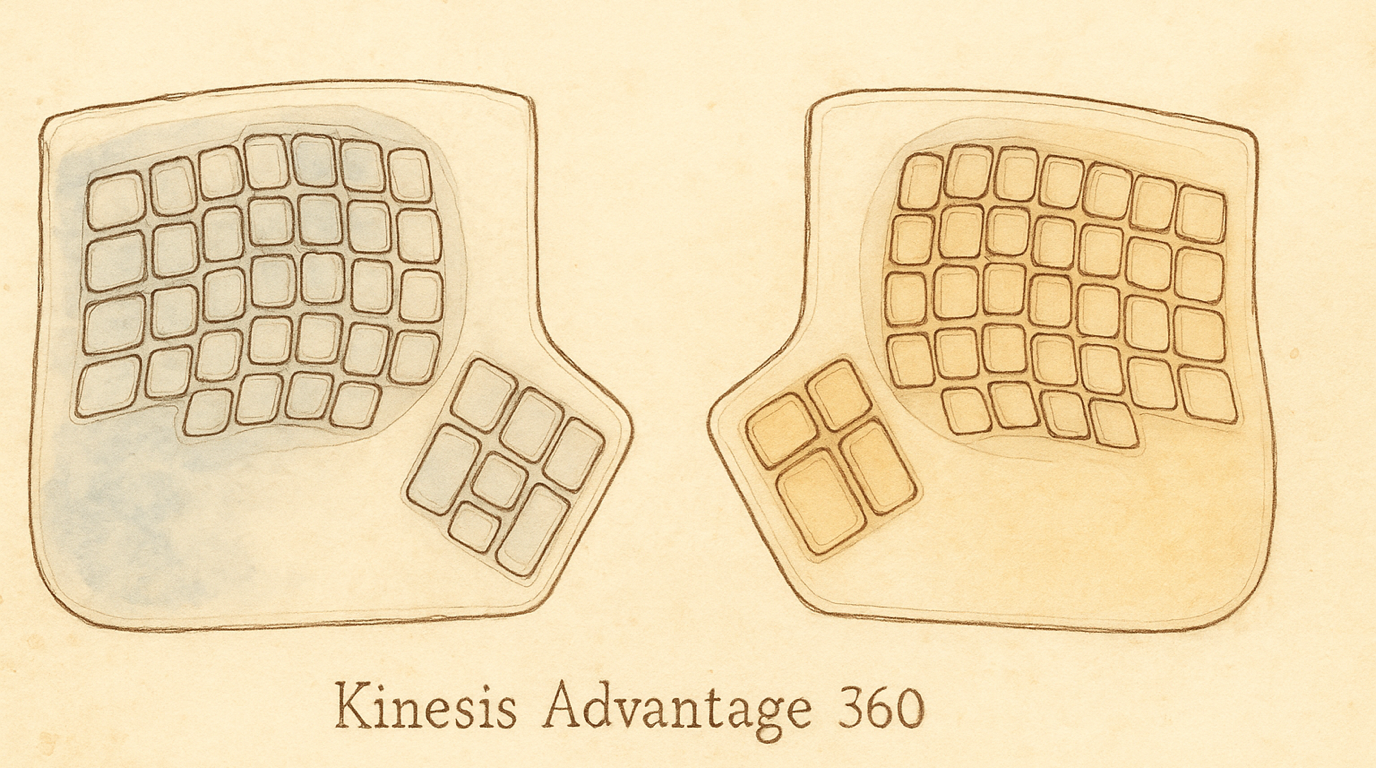
| Kinesis Advantage 360 | 76 | Premium split ergonomic with sculpted keywells that cup your hands |
How to change your layout in KeyPath
- Open KeyPath — the keyboard overlay appears
- Click the gear icon on the overlay to reveal the settings tabs
- Click the Layout tab
- Click your keyboard — the overlay updates instantly
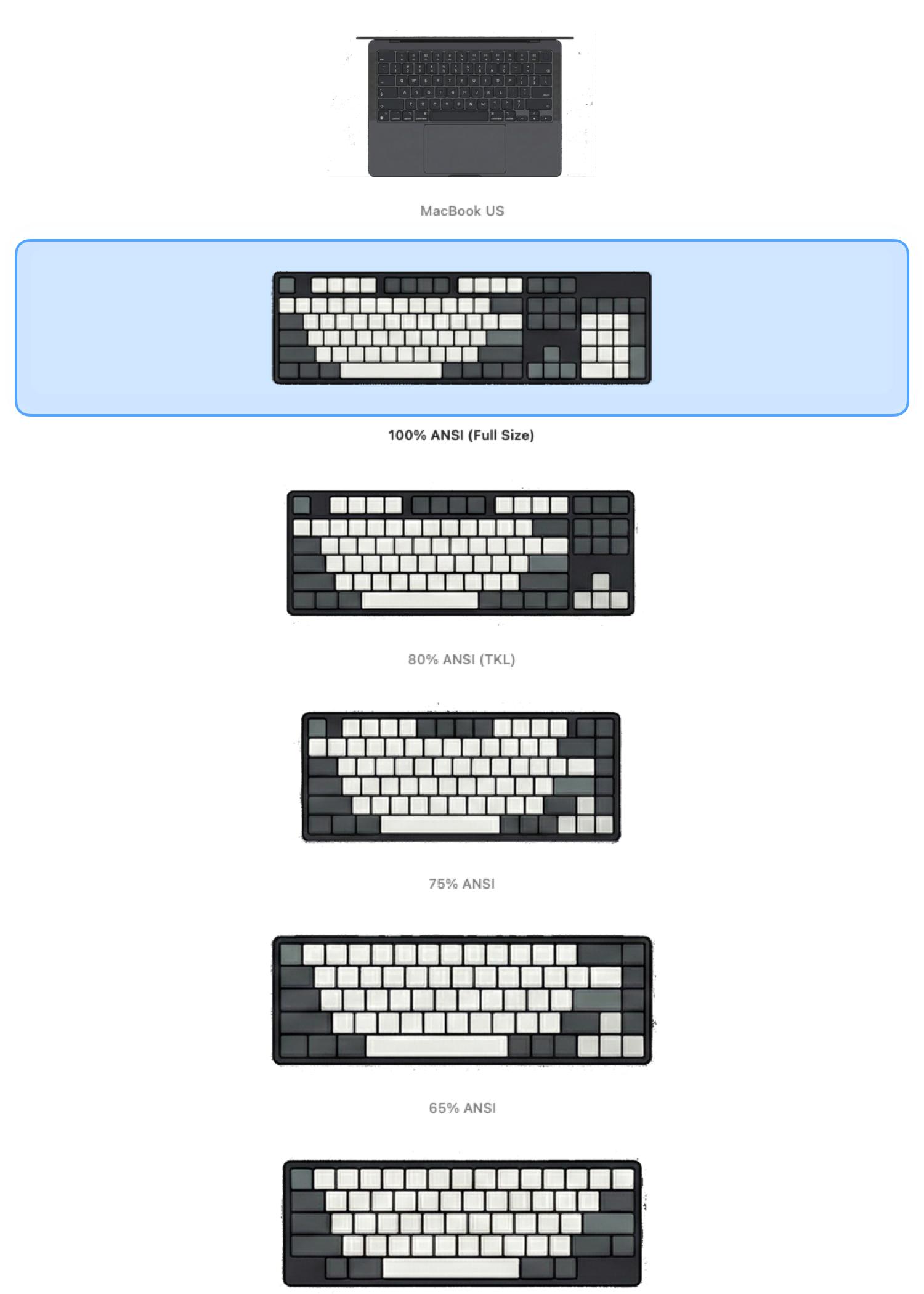 Screenshot — Physical Layout picker (2-column grid):
  ┌─────────────────────────────────────────────────────┐
  │  Physical Layout                                    │
  │                                                     │
  │  STANDARD                                           │
  │  ┌──────────────┐  ┌──────────────┐                 │
  │  │  ▣ ANSI 100% │  │  ANSI 80%    │                 │
  │  │  (selected)  │  │  (TKL)       │                 │
  │  └──────────────┘  └──────────────┘                 │
  │  ┌──────────────┐  ┌──────────────┐                 │
  │  │  ANSI 75%    │  │  ANSI 65%    │                 │
  │  └──────────────┘  └──────────────┘                 │
  │  ┌──────────────┐  ┌──────────────┐                 │
  │  │  ANSI 60%    │  │  ANSI 40%    │                 │
  │  └──────────────┘  └──────────────┘                 │
  │  ┌──────────────┐                                   │
  │  │     HHKB     │                                   │
  │  └──────────────┘                                   │
  │                                                     │
  │  SPLIT & ERGONOMIC                                  │
  │  ┌──────────────┐  ┌──────────────┐                 │
  │  │    Corne     │  │   Cornix     │                 │
  │  └──────────────┘  └──────────────┘                 │
  │  ┌──────────────┐  ┌──────────────┐                 │
  │  │ Ferris Sweep │  │    Sofle     │                 │
  │  └──────────────┘  └──────────────┘                 │
  │  ┌──────────────┐                                   │
  │  │ Kinesis 360  │                                   │
  │  └──────────────┘                                   │
  └─────────────────────────────────────────────────────┘
KeyPath uses your physical layout selection to:
- Shape the overlay — keys appear in the right positions for your board
- Display rules visually — see your remapping rules on an accurate representation of your keyboard
- Show the right keys — a 40% board won’t show function keys that don’t exist
You can combine any physical layout with any logical keymap. For example, select “Corne” as your physical layout and “Colemak-DH” as your keymap to see Colemak-DH labels on a Corne board.
Choosing a keyboard
If you’re thinking about a new keyboard, here’s a rough guide:
If you want a familiar layout but smaller: Start with a 65% or 75%. You keep arrow keys and most shortcuts work unchanged.
If you’re curious about ergonomics: The Sofle is a great first split — it has an extra row compared to the Corne, so the transition from a standard board is gentler.
If you want maximum efficiency: The Corne (42 keys) is the community favorite for a balance of minimalism and usability. Pair it with Shortcuts Without Reaching and layers.
If comfort is the priority: The Kinesis Advantage 360 has sculpted keywells that match your fingers’ natural arc. It’s a significant investment but widely loved for long typing sessions.
If you want the smallest possible: The Ferris Sweep (34 keys) is as minimal as it gets. Everything beyond letters and basic modifiers lives on layers. Not for beginners, but extremely efficient once learned.
Split keyboards and KeyPath
Split keyboards benefit especially from KeyPath’s features:
- Shortcuts Without Reaching — Split-hand detection is a natural fit when your hands are physically separated. Cross-hand keypresses reliably activate modifiers.
- Layers — Smaller boards rely heavily on layers. KeyPath’s tap-hold system makes layer switching smooth and customizable.
- Alternative layouts — Colemak-DH was specifically designed with columnar keyboards in mind. The DH modification moves D and H to more comfortable positions on non-staggered boards.
Related guides
- Alternative Layouts — Colemak, Dvorak, Workman, and other keymaps
- Keyboard Concepts — Layers, modifiers, and tap-hold fundamentals
- Shortcuts Without Reaching — Modifiers on the home row — especially powerful on split boards
- One Key, Multiple Actions — Fine-tune layer-switching keys
- What You Can Build — All KeyPath features at a glance
- Back to Docs
External resources
- Kinesis Advantage 360 — Kinesis’s flagship split ergonomic keyboard
- Corne keyboard — Open-source 42-key split design
- Ferris Sweep — Ultra-minimal 34-key split
- Sofle keyboard — Beginner-friendly split with encoders
- splitkb.com — Split keyboard vendor and community resources
- Kanata configuration reference — Advanced config reference for power users