Make Rules Work Together
As your setup grows, two rules may try to control the same key. A rule can also rely on behavior supplied by another rule—for example, a home-row key that opens the Function layer needs that layer to contain useful actions.
KeyPath checks before it changes your setup. When it finds a problem, it pauses and explains what will happen so you can keep the current setup, switch rules, or continue intentionally.
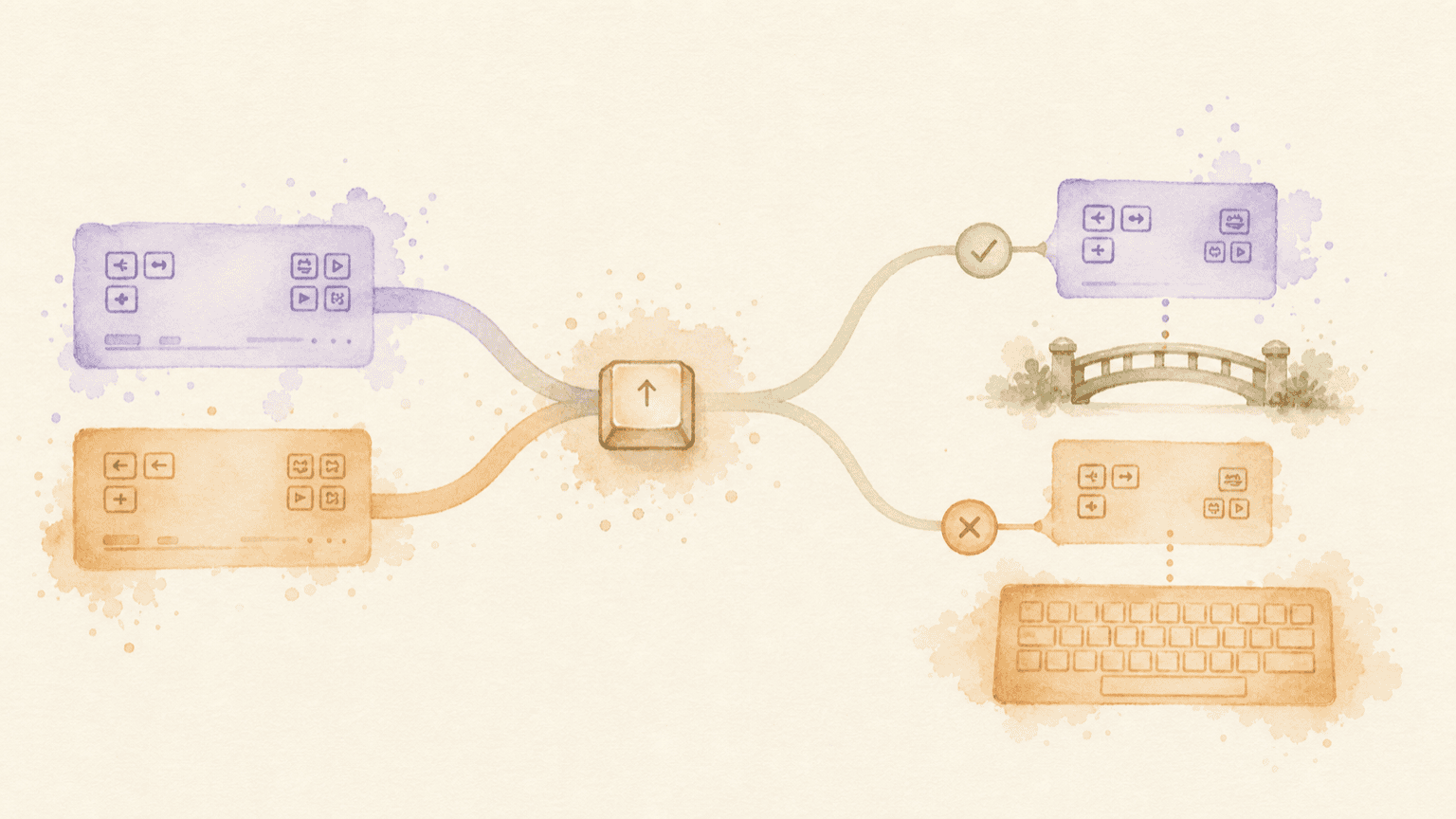
The illustration above shows the two situations: rules meeting at the same key, and a rule using a bridge to reach behavior supplied elsewhere.
Two kinds of conflict
Two rules want the same key
A key can have only one active behavior in the same place. If two rules both claim that key, KeyPath asks which rule you want to keep.
For example, Home Row Mods and Home Row Layer Toggles might both use the semicolon key:
Screenshot — choosing between two rules:

+----------------------------------+
| Switch to Home Row Layer         |
| Toggles?                         |
|                                  |
| Home Row Mods uses the same keys.|
|                                  |
| [ Keep Home Row Mods ]           |
| [ Switch to Layer Toggles ]      |
+----------------------------------+
- Keep the current rule makes no change.
- Switch to the new rule turns off the conflicting rule, then turns on the one you chose.
- Closing the window or pressing Escape makes no change.
The rule KeyPath turns off is not deleted. You can turn it on again later, at which point KeyPath will ask you to choose again if the conflict still exists.
Some packs are intentionally different ways to solve the same problem. When installing one would conflict with an installed pack, KeyPath uses the same Keep or Switch choice and names both packs before changing anything.
When a conflict is found while saving an edited rule, KeyPath shows the rules involved and lets you choose which one to disable:
Screenshot — resolving a conflict while saving:

+----------------------------------+
| Rule Conflict                    |
|                                  |
| Two rules configure the ; key    |
| with different behaviors.        |
|                                  |
| [ Disable Home Row Mods ]        |
| [ Disable Layer Toggles ]        |
+----------------------------------+
One rule needs another
Some rules work together rather than competing. KeyPath calls the supplied behavior a requirement. Common examples include:
- Home-row layer keys that need Function, Symbol, Numpad, or Navigation content.
- A launcher that needs a working Hyper key.
- A rule on a secondary layer that needs a way to enter that layer.
KeyPath checks the behavior, not just a particular built-in rule name. If a different enabled rule already supplies the same behavior, your change proceeds without a warning.
When turning on or editing a rule
If a change introduces a requirement that is not active, KeyPath shows the rule, the behavior it needs, and the affected keys or actions.
Screenshot — adding the rules a change needs:

+----------------------------------+
| Enable the rules this change     |
| needs?                           |
|                                  |
| Layer Toggles needs Function.    |
| Provided by Function.            |
| 2 affected keys: A and ;         |
|                                  |
| [ Save Without Them ]            |
| [ Enable Required Rules & Save ] |
+----------------------------------+
Choose based on what you want:
- Enable Required Rules & Save turns on the clearly matching providers and saves your edit as one change. When you are turning on a rule rather than editing it, the button says Enable Required Rules & Turn On.
- Save Without Them saves only your edit. The affected keys or actions may do nothing until you turn on a matching provider. When enabling a rule, this action says Turn On Without Them.
- Closing the window or pressing Escape cancels the change.
KeyPath offers the one-click fix only when each missing requirement has one clear provider. If several rules could provide the same behavior, KeyPath lists the possibilities and asks you to choose manually instead of guessing.
An old, already-acknowledged missing requirement will not interrupt an unrelated edit. The warning returns only when your new change introduces a new problem.
When turning off a rule
Before disabling a rule, KeyPath checks whether another enabled rule still uses what it supplies.
Screenshot — keeping behavior another rule uses:

+----------------------------------+
| Function is still used by        |
| another rule                     |
|                                  |
| Layer Toggles uses Function.     |
| 2 affected keys: A and ;         |
|                                  |
| [ Disable Anyway ]               |
| [ Keep Function Enabled ]        |
+----------------------------------+
- Keep Function Enabled is the safe default and changes nothing.
- Disable Anyway turns off only Function. KeyPath does not silently delete or rewrite the rules that use it, so their affected keys may do nothing.
- Closing the window or pressing Escape is the same as keeping Function enabled.
If another active rule supplies the same behavior, KeyPath does not warn because the dependent rule will continue to work.
What KeyPath changes—and what it does not
KeyPath keeps conflict resolution predictable:
- It explains the actual affected keys, mappings, or layer path when that detail is available.
- A confirmed multi-rule fix is applied together. If the configuration cannot be applied, KeyPath rolls back the whole change.
- It never chooses between several equally valid providers without asking.
- It never automatically disables dependent rules.
- It does not remove your custom configuration when a rule is turned off.
When you are unsure, choose the emphasized safe action. You can inspect the rules involved and try the change again later.
Related guides
- A Whole Second Keyboard Under Your Fingers — understand the layers that commonly depend on one another.
- Launch Anything With One Keystroke — see how Quick Launcher and the Hyper key work together.
- Shortcuts Without Reaching — configure home-row behaviors without overlapping assignments.
- Packs & Layers — browse coordinated rules that are designed to work together.
- Back to Docs